

How to Copy Trades Across NinjaTrader Accounts (2026 Setup Guide)
Step-by-step guide to using a NinjaTrader trade copier via OAuth2. Covers live-vs-demo setup, cross-broker copying to Tradovate and Rithmic, multipliers, and prop-firm account workflows.
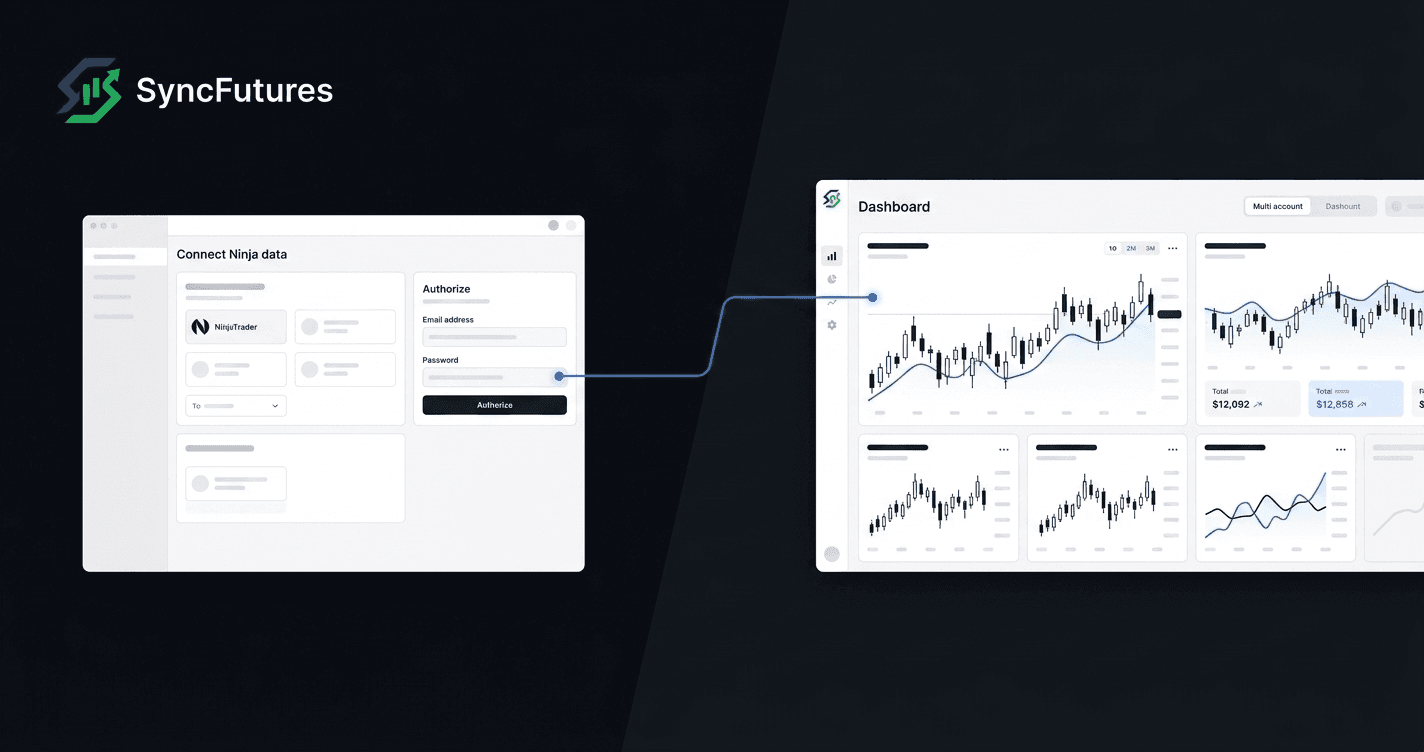
If you run a NinjaTrader brokerage account and want to copy fills to other accounts — whether that's a second NinjaTrader account, a Tradovate account, or a Rithmic account — the setup for a NinjaTrader trade copier is different from most NinjaTrader ecosystem plugins. This guide walks through exactly how it works.
How NinjaTrader Connects to a Trade Copier
NinjaTrader brokerage runs on Tradovate's infrastructure. From a connection standpoint, a NinjaTrader account is a Tradovate-powered account — it appears in SyncFutures as a NinjaTrader - prefixed entry.
The practical implication: you connect via Tradovate OAuth2, not by entering NinjaTrader credentials directly. There's no separate NinjaTrader API to configure, and no plugin to install in the NinjaTrader platform.
Most NinjaTrader-branded "trade copiers" in the NinjaTrader ecosystem are add-on scripts that run inside the NinjaTrader desktop application itself. SyncFutures is different — it connects at the broker level and runs in the cloud (and on your phone), so it keeps working whether NinjaTrader is open or not.
Step-by-Step: Connect Your NinjaTrader Account
- Go to Accounts in the SyncFutures dashboard (web or mobile app) and choose to add a connection.
- Select Tradovate as the broker type.
- An OAuth authorization window opens. Log in with your NinjaTrader brokerage credentials (which are your Tradovate login).
- Select the environment your account is on — Live or Demo (see the note below if you're unsure).
- Your NinjaTrader-named accounts appear in the list, prefixed with
NinjaTrader -.
No API key, no password pasting into SyncFutures, no platform script.
Live vs Demo: Picking the Right Environment
This comes up regularly in support. When you connect, you choose an environment — Live or Demo. Your accounts only appear under the one they actually live on. Pick the wrong one and you'll see "no accounts found" — that's not a bug, it just means the account is on the other environment.
A quick rule of thumb:
- Funded or direct brokerage accounts are usually on Live.
- Many prop-firm evaluation (simulation) accounts are on Demo.
The fix is simple: if your accounts don't show up, switch the environment selector to the other option and they'll appear.
Cross-Broker Copying With NinjaTrader
One of the main reasons to use SyncFutures for NinjaTrader accounts is cross-broker copying — running fills from a master on one broker to slave accounts on a different broker. Common setups:
| Master | Slave(s) |
|---|---|
| NinjaTrader (Tradovate OAuth) | Rithmic account |
| NinjaTrader (Tradovate OAuth) | Second Tradovate account |
| NinjaTrader (Tradovate OAuth) | ProjectX (TopstepX) account |
| Tradovate account | Rithmic + ProjectX (TopstepX) |
| ProjectX (TopstepX) account | NinjaTrader (Tradovate OAuth) |
| Rithmic account | NinjaTrader (Tradovate OAuth) |
SyncFutures copies across all four execution brokers — Tradovate, Rithmic, NinjaTrader, and ProjectX — in any master/slave combination, including one master fanning out to several slaves on different brokers at once.
Set up a copy rule by selecting the master account, adding slave accounts, and configuring the quantity multiplier. Symbol filtering lets you copy only specific contracts — useful when the master trades multiple instruments but you want only certain fills copied.
Quantity Multipliers for Multi-Account Sizing
The multiplier setting scales copied fill size up or down per rule, from 0.1x to 100x:
- 0.1x — slave receives 10% of master fill size (scale a smaller evaluation account down)
- 1x — mirror fills exactly
- 3x — scale a small master position up on a larger slave account
Each copy rule has its own multiplier, so a single NinjaTrader master can copy to multiple slaves at different sizes simultaneously.
Symbol Filtering and Quarterly Rollover
Copy rules in SyncFutures are pinned to a specific contract symbol (e.g., ESU26 for the September ES contract). There's no "copy all months" setting.
At quarterly futures rollover — March, June, September, December — any rule pinned to the expiring front-month goes quiet: the master fills, nothing copies. The fix is to update the contract on the rule after rollover. It takes about 30 seconds.
If rollover catches you away from your desk, the mobile app lets you update copy rules directly from your phone.
Monitoring NinjaTrader Accounts From Mobile
The SyncFutures mobile app (iOS and Android, live as of June 2026) gives you the same account view as the web platform:
- Realized P&L per account, updated in real time
- One-tap flatten: closes all positions and cancels resting orders in a single action
- Push notifications for connection drops, copy failures, and support replies
- Trading journal with auto-tagged trades and net broker fees
- Synca AI coach (if you have the $14/mo add-on)
The NinjaTrader connection on mobile uses the same Tradovate OAuth2 flow. Connect once on web or mobile — it syncs across.
iOS App Store: https://apps.apple.com/us/app/syncfutures/id6776365336
Google Play: https://play.google.com/store/apps/details?id=com.syncfutures.mobile
Both platforms: https://syncfutures.com/mobile
What the Trading Journal Shows
Every copied fill is auto-synced to the journal. Trades are tagged and show net realized P&L (with broker fees included, not gross). This matters when tracking funded-account performance — the journal shows what you actually made, after commissions and fees.
Pricing
SyncFutures pricing is connection-based — all plans include the same features. The difference is how many connections you can add.
| Plan | Connections | Monthly price |
|---|---|---|
| Starter | 3 | $39/mo |
| Professional | 5 | $89/mo |
| Ultimate | unlimited (up to 200 accounts) | $129/mo |
All plans start with a 7-day free trial. See syncfutures.com/pricing for full details.
FAQ
My accounts don't show up when I connect — what's wrong?
You've most likely selected the wrong environment. Accounts only appear under the environment they're on — Live or Demo. If you see "no accounts found," switch the environment selector to the other option. Funded/brokerage accounts are usually on Live; many prop-firm evaluation accounts are on Demo.
Does SyncFutures enforce prop-firm rules on my NinjaTrader account?
No. Loss limits in SyncFutures are informational journal goals — they surface in the dashboard but do not auto-suspend trading, auto-flatten, or enforce any rules on your behalf. Rule compliance is on you.
Can I copy from Rithmic to NinjaTrader?
Yes. Add your Rithmic account as master and your NinjaTrader account as slave, set the multiplier and contract symbol, and you're copying cross-broker.
Do I need NinjaTrader desktop open for copying to work?
No. SyncFutures connects at the broker API level. As long as your NinjaTrader brokerage account is active, copying works regardless of whether the NinjaTrader platform is running.
What happens at quarterly rollover?
The copy rule is pinned to a specific contract. After each quarterly rollover, update the contract on the rule to the new front month. It takes about 30 seconds and can be done from the mobile app.
Is there a plugin to install?
No. SyncFutures connects via Tradovate OAuth2 — there's no NinjaTrader platform script, add-on, or indicator required.