

Apex Trader Funding Trade Copier: Rithmic and Tradovate Setup Guide
How to set up SyncFutures as a trade copier for Apex Trader Funding accounts — covers both the Rithmic and Tradovate connection paths, copy rule setup, and what the copier does and doesn't do for prop traders.
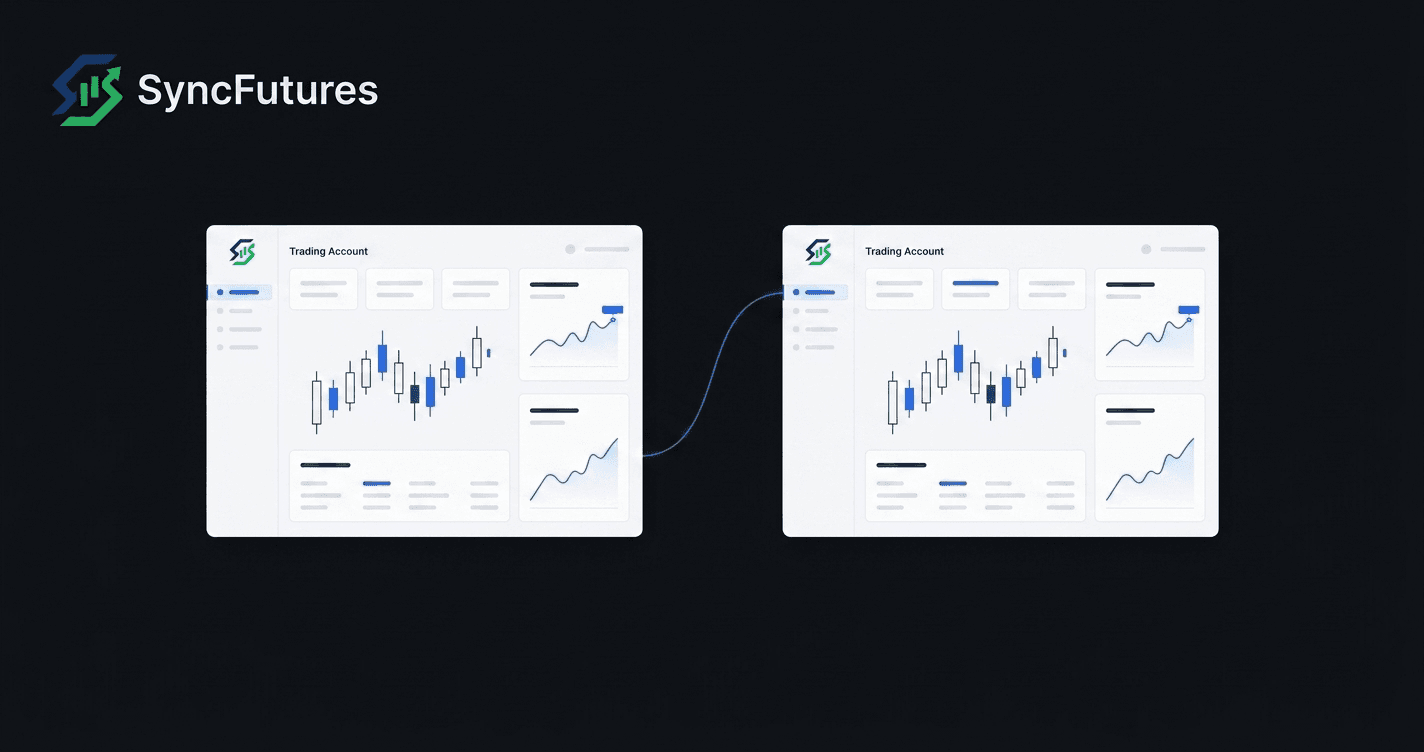
If you're running multiple Apex Trader Funding accounts and copying trades manually — entering the same order across three or four eval or funded accounts — this guide is for you. SyncFutures supports both connection paths Apex uses (Rithmic and Tradovate), so whichever platform you chose at account purchase, you can set up cross-account copy trading without switching tools.
How Apex Trader Funding accounts connect
Apex lets traders choose their platform at account purchase: Rithmic, Tradovate or WealthCharts. That selection is locked — you can't switch it after purchase.
SyncFutures connects to Rithmic and Tradovate. WealthCharts is not supported, so if you bought your Apex account on WealthCharts, SyncFutures can't copy those fills — and because the platform choice is locked, that can't be changed after purchase. Rithmic and Tradovate use different authentication methods, so the setup in SyncFutures differs slightly between them.
If you're on Tradovate: connection uses OAuth2. You authorize via Tradovate's login — no username/password entered directly in SyncFutures. You'll also choose whether your accounts are on Live or Demo at connection time — Apex accounts run on Demo, both eval and funded/PA, since Apex funded accounts trade simulated capital rather than a live brokerage account.
If you're on Rithmic: connection uses credentials — your Rithmic username, password, and the system name for your Apex accounts (the Rithmic system identifier shown in your Apex account details or welcome email).
Both connection types work in SyncFutures. You can also mix them: if you have both Tradovate and Rithmic accounts across different prop firms, you can connect all of them and copy across brokers.
What SyncFutures does for Apex traders
Once your accounts are connected, SyncFutures gives you:
- Cross-account copy trading — a fill on your master account copies to one or more slave accounts in real time. You can have all your Apex accounts as slaves to a single master, or any other arrangement that fits your setup.
- Cross-broker copying — copy between accounts on different brokers. A Tradovate master copying into a Rithmic slave (or the other direction) works the same way as same-broker copying.
- Real-time realized P&L monitoring — see settled P&L across all connected accounts in one dashboard. Tradovate and Rithmic accounts show up side by side.
- One-click flatten — closes all positions and cancels resting orders across accounts. Works on web and mobile.
- Trading journal — trades from all connected accounts sync automatically at the end of each trading day. Tradovate trades are enriched with the real commissions and exchange fees charged; Rithmic trades currently journal gross P&L. Trades are auto-tagged for behavioural patterns such as revenge trading and overtrading, alongside per-session stats.
- Synca AI coach — a $14/month add-on that works with your journal data to surface time-of-day, day-of-week, and instrument-level patterns in your trading.
Connecting a Tradovate-based Apex account
- Log into SyncFutures and go to Accounts Management.
- Click Add Broker Connection and select Tradovate.
- Choose Demo as your environment — Apex accounts (eval and funded/PA alike) run on Tradovate's demo environment, not live. If accounts don't appear after connecting, double-check you selected Demo; that's the most common cause of "no accounts found."
- Authorize via Tradovate's OAuth login. Your Apex accounts should appear in SyncFutures once connected.
If you have multiple Apex accounts on Tradovate, they'll all come through on the same connection. Each appears as a separate account in SyncFutures, and you can assign any of them as a master or slave in a copy rule.
Connecting a Rithmic-based Apex account
- Log into SyncFutures and go to Accounts Management.
- Click Add Broker Connection and select Rithmic.
- Enter your Rithmic username, password, and the system name for your Apex accounts (the Rithmic system identifier shown in your Apex dashboard or welcome email).
- Save. Your Apex accounts should appear once authenticated.
If you're not sure what your Rithmic system name is, check your Apex Trader Funding account details or contact Apex support — it's the infrastructure layer your accounts sit on, and Apex provides it during onboarding.
Setting up a copy rule
Once your accounts are connected, creating a copy rule takes under a minute:
- Go to Copier Rules from the dashboard.
- Select your master account (the one you trade on) and your slave account(s) (the ones that receive copies).
- Set the symbol — copy rules are contract-specific. Enter the front-month contract you're currently trading (e.g. ESU6, NQU6).
- Save and enable the rule.
From this point, orders on the master copy to the follower accounts in real time — entries, and resting orders such as stops and bracket legs.
Running several Apex accounts at once
One rule can feed several follower accounts — you don't create a rule per follower. Set the account you actually trade as the master, add your other Apex accounts as followers, and set each follower's quantity multiplier (0.1x to 100x) to match its size relative to the master. When you start a new eval mid-month, add it as a follower on the existing rule and it receives copies from that point on.
Apex's own rules apply on top of this, and they're the ones that can cost you an account:
- Copy trading is permitted only across accounts you own, never another trader's.
- Apex caps copying at 20 funded (Performance) accounts at once, counted across everyone in the same household or company.
- Every account must be on the same side of the market.
- The master trade must be placed by hand. Apex permits your other accounts to mirror it automatically; what isn't allowed is an algorithm originating the trade.
SyncFutures won't stop you exceeding any of these, so check the current policy on Apex's support site before you scale up; prop firm rules change.
A SyncFutures account can hold up to 10 copier rules. Since each rule is tied to one contract, that's the ceiling on how many symbols you copy at once.
Quarterly rollover and copy rules
This is the most common issue Apex traders run into with a trade copier: copy rules are pinned to a specific contract symbol. When the front month rolls (ES, NQ, and most CME contracts roll quarterly — March, June, September, December), a rule still pointing at the old contract goes silent. The master fills; nothing copies.
Fix: update the symbol on each copy rule to the new front-month contract before the old one expires. Liquidity typically moves to the new front month a few days before expiration, so update your rules when you see volume shifting — not on expiration day. It's a 60-second edit on each rule.
See also: Quarterly Futures Rollover Checklist for Trade Copier Users
What SyncFutures does not do
Worth stating plainly, because Apex's rules are strict and a copier is not a risk system:
- It does not enforce Apex's drawdown rules. The daily and weekly loss limits you can set in SyncFutures are journal goals — they show as progress against the limit you set, alongside your targets. Nothing is auto-closed, auto-flattened or disconnected on a breach.
- It does not monitor your accounts for rule compliance. Apex's own risk engine does that.
- It does not guarantee identical fills. Followers are separate accounts at the broker, so slippage, partial fills and rejections happen independently of the master.
FAQ
Which SyncFutures plan do I need for Apex accounts?
All plans include the same features. The only difference is the number of connections:
| Plan | Connections | Price |
|---|---|---|
| Starter | 3 | $39/mo |
| Professional | 5 | $89/mo |
| Ultimate | unlimited (up to 200 accounts) | $129/mo |
Plans count broker connections, not accounts. One Tradovate connection covers all your Apex Tradovate accounts, and one Rithmic connection covers your Apex Rithmic accounts, so most Apex setups fit in Starter. Move up when you add more connections, such as other prop firms or brokers. See pricing.
Can I copy between a Tradovate account and a Rithmic account?
Yes. Connect both on the Accounts page, then create a copy rule pointing from one to the other. Cross-broker copying is one of SyncFutures' core features — the platform doesn't require master and slave to be on the same broker.
Can I copy between two Tradovate-based Apex accounts?
Yes. Both will appear as separate accounts after connecting your Tradovate connection. Assign one as master and the other as slave in a copy rule.
Do I need separate SyncFutures connections for each Apex account?
No — one Tradovate connection surfaces all your Apex Tradovate accounts. One Rithmic connection (with your Apex system name) does the same for Rithmic-based accounts. Each individual account still counts as a separate account in copy rules, but the connection is per broker, not per account.
What if I have Apex accounts on both Rithmic and Tradovate?
Connect both broker types on the Accounts page — they'll each surface their respective accounts. You can then create cross-broker copy rules between them as needed.
Will the mobile app work for monitoring Apex accounts?
Yes. The SyncFutures mobile app (iOS and Android) shows all connected accounts, realized P&L, and the flatten button. Available on the App Store and Google Play.
See pricing at syncfutures.com/pricing — new subscribers start with a 7-day free trial.