

How to Set Up a ProjectX Trade Copier (TopstepX Step-by-Step Guide)
Learn how to connect your ProjectX account to SyncFutures for cross-account futures trade copying. Covers TopstepX setup, API key connection, copy rules, and multiplier configuration.
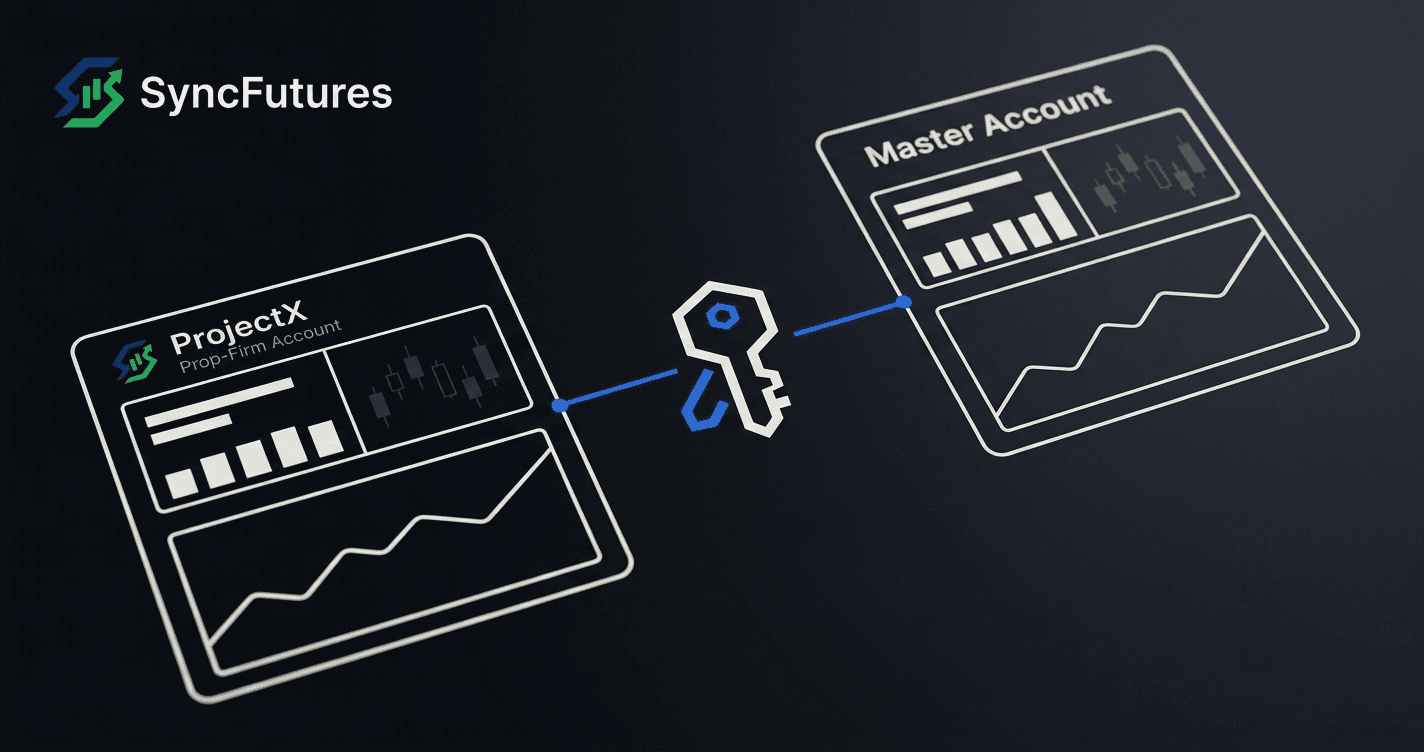
If you're trading through TopstepX — or any prop firm built on the ProjectX platform — and want to copy fills across multiple accounts, this guide walks through the full setup in SyncFutures.
ProjectX uses an API key connection (not OAuth, not a password login), so the setup takes a couple of extra minutes to grab your key before you connect. Once it's done, it stays connected.
What is ProjectX?
ProjectX is the platform infrastructure that powers certain futures prop firm accounts, including TopstepX. In SyncFutures, "ProjectX" is a supported broker connection type that covers these accounts.
If your prop firm runs on ProjectX, you connect the same way in SyncFutures: same fields, same steps, just a different firm selected during setup.
What you can do once it's connected
With a ProjectX account connected to SyncFutures, you can:
- Copy fills from a master account to one or more slave accounts, cross-broker if needed (e.g. a Tradovate master copying into a TopstepX slave, or vice versa)
- Scale size per slave account using a quantity multiplier (0.1x to 100x per copy rule)
- Monitor realized P&L across all connected accounts in one place
- One-click flatten across accounts — closes positions and cancels resting orders simultaneously
SyncFutures does not enforce prop-firm drawdown rules. Daily and weekly loss limits are informational dashboard goals, not auto-enforcement. If you're looking for that, it's a different tool.
Before you connect
You'll need:
- Your ProjectX username — the email or username on your TopstepX/ProjectX account
- A ProjectX API key — generated from your account settings in the ProjectX platform (check under your account or profile settings; it's usually labeled "API Key" or "API Access")
- Which prop firm you're on — in SyncFutures you'll select this during setup (e.g. TopstepX)
If you're unsure where to find the API key, log into your TopstepX dashboard and look in the account or profile section. The API key is specific to your ProjectX account, not to SyncFutures.
How to connect your ProjectX account in SyncFutures
- Log into SyncFutures and go to the Accounts page.
- Click Add Connection and select ProjectX as the broker type.
- Enter your username, paste in your API key, and choose your prop firm from the selection (e.g. TopstepX).
- Save. SyncFutures will verify the connection and your accounts should appear.
If your accounts don't appear after connecting, double-check the API key — a single miscopied character will cause a failed auth. Re-generate the key if needed.
Setting up a copy rule
Once your ProjectX account shows up in SyncFutures, you can set it as either the master (the account whose fills get copied) or a slave (the account that receives copies).
To create a copy rule:
- Go to Copy Rules from the dashboard.
- Select your master account and your slave account(s).
- Set the symbol you want to copy (e.g. ES, MES, NQ). Each rule is contract-specific — there's no "copy everything" toggle.
- Set the quantity multiplier (default 1x).
- Save and enable the rule.
Fills on the master account will now copy to the slave in real time.
Symbol rules and rollover
Copy rules are pinned to a specific contract symbol. When a contract rolls (quarterly, for ES/NQ/CL/GC), the front-month changes — and your rule will silently stop copying if it's still pointing to the expired contract.
Fix: update the symbol on your copy rule before the old contract goes illiquid, not on expiration day itself. CME contracts expire the third Friday of March, June, September, and December, but traders typically roll to the new front-month a few days ahead of that, once liquidity shifts to the new contract — so update your rule in the days leading up to expiration, not on it. It's a one-minute change on the rule itself.
See also: Quarterly Futures Rollover Checklist for Trade Copier Users
Setting the multiplier for different account sizes
If your ProjectX account is a different size than your master account, you'll want to adjust the multiplier.
| Scenario | Suggested multiplier |
|---|---|
| $50K eval copying from a $150K master | ~0.3x on the eval's rule |
| $100K funded copying from a $50K master | ~2x on the funded account's rule |
| Accounts at the same size | 1x (default) |
These are starting points — adjust based on the actual contract and buying power of each account. Each slave account's copy rule has its own independent multiplier. One master, five different ratios on five slaves, all configurable without touching the other rules.
Range is 0.1x to 100x.
Cross-broker copying
You don't have to copy between two ProjectX accounts. SyncFutures supports cross-broker copying: a Tradovate master can copy into a ProjectX/TopstepX slave, and a ProjectX master can copy into a Rithmic or NinjaTrader slave.
The setup is the same — both accounts need to be connected on the Accounts page, then you create a copy rule pointing from one to the other.
FAQ
Does SyncFutures auto-close my positions if I breach a TopstepX drawdown limit? No. Loss limits in SyncFutures are informational — they track against your journal data and surface a warning. Nothing auto-flattens. Use the one-click flatten button manually if you want to close out. TopstepX enforces its own rules on their platform.
Can I copy between two TopstepX accounts? Yes, as long as both are connected on the Accounts page and have separate copy rules set up.
What if I have both a Tradovate account and a TopstepX account? Both can be connected. Connect the Tradovate account via OAuth2 and the TopstepX/ProjectX account via API key. Then set up a cross-broker copy rule between them.
Which plan do I need? Any plan works — all plans include the full feature set. The difference is how many connections you can have active:
- Starter: 3 connections ($39/mo)
- Professional: 5 connections ($89/mo)
- Ultimate: unlimited connections, up to 200 accounts ($129/mo)
Start a 7-day free trial at syncfutures.com/pricing
What happens if my API key changes? You'll need to reconnect — connections can't be edited in place, so remove the existing connection on the Accounts page and add it again with the new key. Removing a connection also removes its copy rules, so you'll need to recreate them once you've reconnected.
Start with a 7-day free trial. No commitment.