

How to Copy Trades Across Your Tradeify Accounts (Step-by-Step Guide)
Yes, Tradeify allows copy trading between your own accounts. Here are the rules that matter and a step-by-step setup for copying trades across every Tradeify account on Tradovate or Rithmic.
Why Tradeify traders need a trade copier
Tradeify's funded program lets you scale by holding multiple accounts — but the accounts are independent. A fill on one doesn't automatically copy to the others. If you're running three Tradeify accounts alongside your main, you're manually replicating every trade in real time.
That works until you miss one, or the second entry slips while you're entering the third. The accounts fall out of sync, and now you're managing different positions across the same strategy.
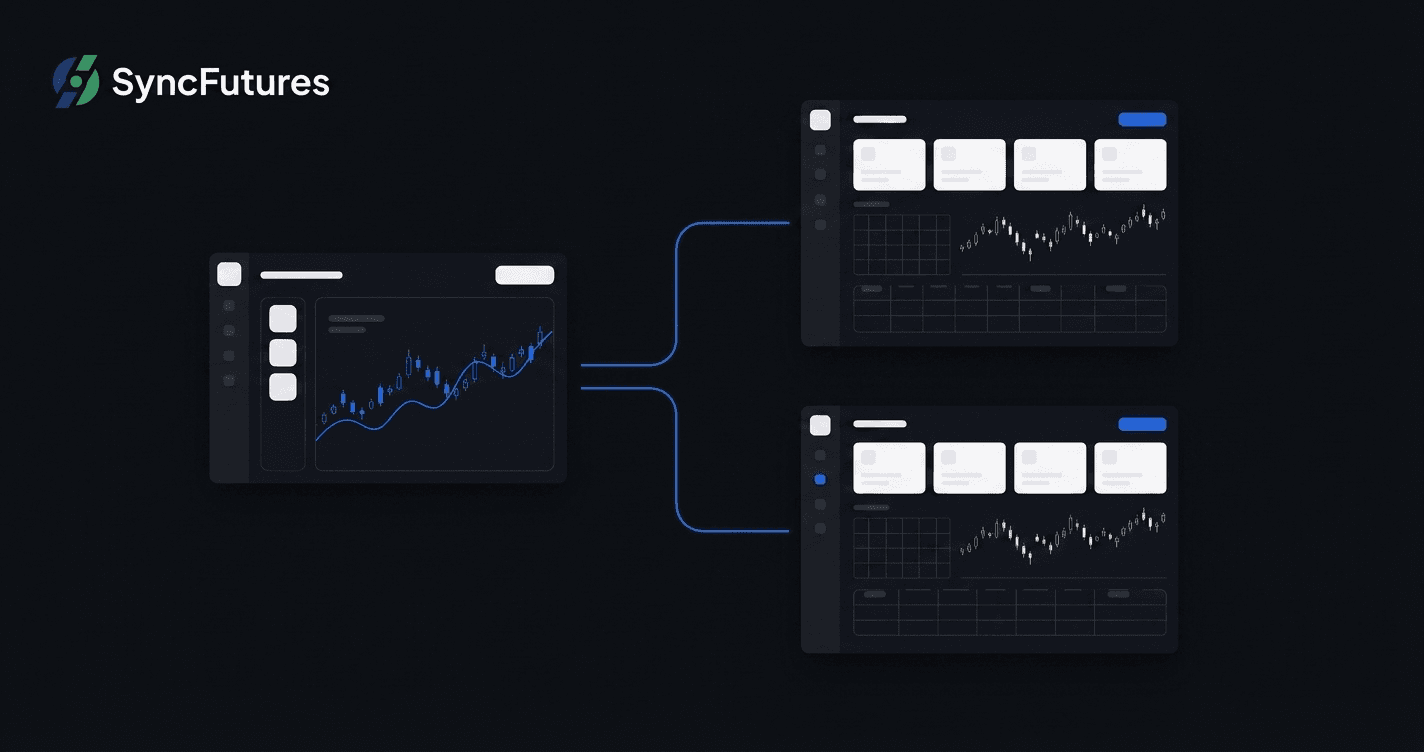
A trade copier solves this by automating the replication the moment a fill happens, across every account you designate — so you trade the master once and the rest follow.
How Tradeify's broker works (why it matters for setup)
Most Tradeify funded accounts run on Tradovate's infrastructure, so connecting them to SyncFutures is usually a Tradovate connection. (Tradeify accounts can also run on Rithmic — if you're not sure which platform your account uses, check the login page Tradeify sent you, or look at what platform you already use to trade it.)
For the Tradovate case, the connection uses OAuth2: you authorize SyncFutures through Tradovate's login, no password entry or API key required. When you connect, you'll choose between the Live environment and the Demo environment. Most prop firm and funded accounts, including Tradeify, should select Demo — Live is for a personal, self-funded Tradovate account. If you're unsure which applies to you, SyncFutures shows guidance for each option right in the connection dialog.
After connecting, all your Tradovate-hosted accounts — including every Tradeify funded account — appear automatically under that connection. You don't add them one by one.
Setting up copy trading for Tradeify accounts
Step 1: Connect Tradovate from the Accounts page
Log into SyncFutures and go to the Accounts page. Select Tradovate as the broker, click Connect, and follow the OAuth flow to authorize. Pick the Demo environment (that's the correct one for prop firm and funded accounts, Tradeify included — see above). Your Tradeify funded accounts will appear.
One OAuth connection covers all Tradovate/Tradeify accounts. You add this once.
Step 2: Identify your master account
Decide which account will be the source of truth — the one you actively trade. The master is usually your main Tradeify funded account (or your own account if you're copying into evaluation accounts). Slave accounts receive and mirror fills from the master.
Step 3: Create copy rules
In SyncFutures, go to Copy Rules and create a new rule:
- Master: select the account you'll actively trade
- Slave(s): select one or more destination accounts
- Contract symbol: select the exact contract, including its expiry month (e.g.,
MESU6,MNQU6,ESU6for the September 2026 contracts). Rules are symbol-specific — you'll set one rule per instrument, and it has to be the full contract code, not just the base product
Click save. The rule activates immediately and will fire on the next fill on the master.
Step 4: Verify with a small test
Before running live, test with a small position on the master and confirm fills appear on each slave account in the journal view. The realized P&L view shows all accounts together so you can verify they're synced.
Important: contract rollover
Copy rules in SyncFutures are pinned to a specific contract symbol — not a general instrument. A rule set to MESH6 (the March 2026 Micro E-mini) keeps that contract even after expiry. When the front month rolls, the master fills on the new contract but the rule still points to the old one — fills stop copying silently.
Before each quarterly rollover: update the contract on each copy rule to the new front-month. A few minutes of attention each quarter avoids a session of missed copies.
The cross-broker scenario: Tradeify + TopstepX (or other firms)
Here's where SyncFutures is different from most copy tools.
If you hold accounts at Tradeify (on Tradovate) and TopstepX (on ProjectX), you have accounts on two different broker platforms. Standard copy tools that work within one broker won't help here.
SyncFutures copies across brokers. You can set your Tradeify account as the master and copy fills to TopstepX accounts simultaneously — the copy engine handles the bridge.
Adding a ProjectX connection (for TopstepX accounts)
From the Accounts page, add a second connection using ProjectX as the broker:
- Enter your ProjectX username and API key (found in your ProjectX dashboard under account settings)
- Select TopstepX as the prop firm
- Your TopstepX accounts appear under the ProjectX connection
Once both connections are active, you can create cross-broker copy rules: Tradeify master → TopstepX slave(s). The fill executes on Tradovate and copies to ProjectX in the same session.
What a cross-broker setup looks like
| Account | Broker | Role |
|---|---|---|
| Tradeify funded (main) | Tradovate | Master |
| Tradeify funded (2nd) | Tradovate | Slave |
| TopstepX funded | ProjectX | Slave |
All accounts are visible in the SyncFutures journal. Realized P&L pulls from each broker and displays together, net of fees, in one view.
One-click flatten across all accounts
The flatten button in SyncFutures closes all open positions and cancels any pending/resting orders across every connected account simultaneously. It works across brokers — one tap covers your Tradeify accounts and your TopstepX accounts in the same action.
This matters most in fast-moving markets where you need to exit quickly without cycling through each platform.
Monitoring from anywhere
SyncFutures has a native mobile app (iOS and Android) where you can monitor all connected accounts, check realized P&L, review the journal, and flatten from your phone if needed.
Pricing
Plans are connection-based — all plans include the same features; the difference is how many broker connections you can add:
| Plan | Connections | Price |
|---|---|---|
| Starter | 3 | $39/mo |
| Professional | 5 | $89/mo |
| Ultimate | Unlimited (up to 200 accounts) | $129/mo |
All plans include a 7-day free trial. The AI coaching add-on (Synca) is $14/mo separately.
See SyncFutures pricing for the current details.
Frequently asked questions
Does Tradeify allow copy trading? Yes, between accounts you own. Tradeify allows copying trades across your own Tradeify accounts, but copying to or from accounts owned by someone else is prohibited. All copied accounts must also trade in the same direction, because holding opposite positions in the same or correlated products counts as hedging. SyncFutures always copies in the same direction as your master account and has no reverse-copy mode. Tradeify's rules can change, so confirm the current policy in the Tradeify Help Center before you start.
Does SyncFutures copy between Tradeify accounts on the same plan? Yes. You can designate one Tradeify account as the master and route fills to any other Tradeify accounts you've connected through the same Tradovate OAuth.
Can I copy from a Tradeify account to a TopstepX account? Yes — this is what SyncFutures calls cross-broker copying. Tradeify runs on Tradovate or Rithmic; TopstepX runs on ProjectX. You connect both, then set copy rules between accounts on different brokers.
Do I need a VPS to keep the copier running? No. SyncFutures runs as a cloud service — the copy engine stays active without any local software or VPS. It works as long as your broker connections are authorized.
What happens at quarterly futures rollover? Copy rules are pinned to a specific contract symbol. You'll need to update each rule to the new front-month contract before rollover or fills will stop copying on the old contract. See our rollover checklist for a step-by-step.
Does SyncFutures enforce Tradeify's drawdown rules? No. SyncFutures is a copy tool, not a rule-enforcement system. Drawdown limits in SyncFutures are informational journal goals surfaced in the dashboard — nothing is auto-enforced or auto-closed. You remain responsible for staying within your funded account parameters.
Where do I start? SyncFutures Tradeify trade copier page has an overview. To get started, go to syncfutures.com/pricing — 7-day free trial.