

How to Connect Tradovate to a Trade Copier (Step-by-Step Guide)
Learn how to connect your Tradovate account to a trade copier for automated trade replication across multiple prop firm accounts. Complete guide with OAuth setup, environment selection, and troubleshooting.
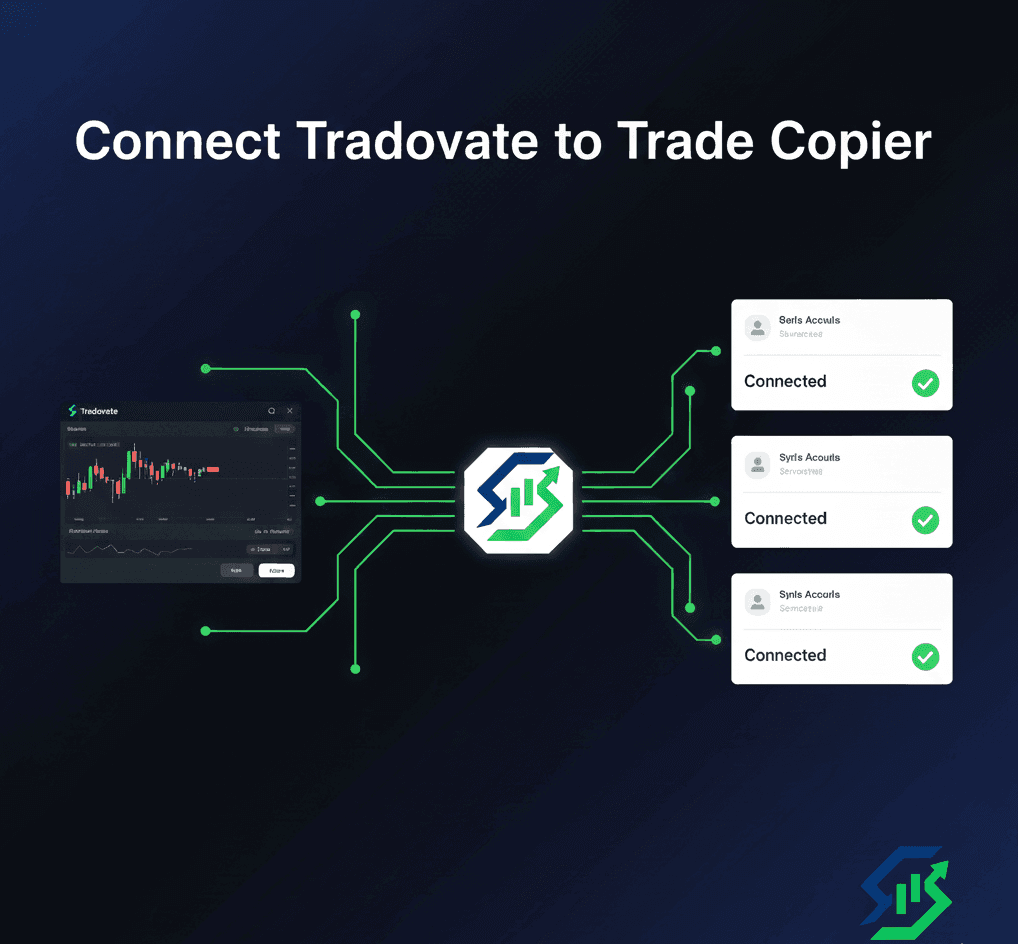
Introduction
You're managing five Apex Trader Funding accounts and five Tradeify accounts. You spot the perfect entry on the ES futures contract. You execute on your first Tradovate account, then frantically switch to the second account. By the time you get to the third and fourth accounts, the market has already moved two ticks. Your tenth account? You missed the entry entirely.
If this scenario sounds familiar, you're not alone. Prop firm traders running multiple Tradovate accounts face the same challenge: how do you execute the same trade across every account without missing entries, getting worse fills, or spending your entire trading session on order execution?
The solution is a Tradovate trade copier—automation that replicates your trades across all your accounts in milliseconds. In this comprehensive guide, we'll walk you through exactly how to connect your Tradovate account to a trade copier, with special attention to the critical details that trip up most traders: environment selection for prop firm accounts.
Tradovate is one of the most popular trading platforms for prop firms like Apex Trader Funding, Take Profit Trader, Leeloo Trading, TradeDay, and many others. If you're trading futures through any of these prop firms, chances are you're using Tradovate—and connecting it to a trade copier is essential for scaling your success across multiple funded accounts. (If you're new to trade copiers for prop firms, check out our complete guide to the best trade copier for prop firm accounts first.)
📱 Now available on iOS and Android. Manage broker connections, copy rules, and positions from your phone. See the SyncFutures mobile app →
Why Connect Tradovate to a Trade Copier?
Before we dive into the technical setup, let's understand why automating your Tradovate trade execution is crucial for serious prop firm traders.
Execute Once, Replicate Everywhere
The core benefit is simple but powerful: you trade normally on one master account, and every entry, exit, stop loss, and modification automatically replicates to all your other accounts. There's no manual copying, no switching between platforms, no repetitive order entry.
You focus 100% of your attention on reading the market and executing your strategy. The technology handles the replication across all your funded accounts.
Lightning-Fast Trade Replication
Speed matters in futures trading. Modern Tradovate automation solutions like SyncFutures replicate trades in milliseconds. This means your slave accounts receive and execute trades almost simultaneously with your master account.
The result? Minimal slippage between accounts. If you get filled at 4500.50 on your master account during a fast market, your slave accounts will likely get filled at 4500.50 or 4500.75—not 4501.50 like they would if you were manually entering orders five minutes later.
No More Missed Entries or Different Fill Prices
Manual execution across multiple accounts creates inevitable problems. You miss entries on some accounts because you physically can't execute fast enough. You get wildly different fill prices across accounts when the market moves while you're still entering orders.
With a Tradovate trade copier, every account submits orders at essentially the same instant. Fill prices will still vary slightly based on order routing and liquidity—that's unavoidable even with automation—but the variation is minimal compared to manual execution.
Scale Across Multiple Funded Accounts
If you've passed evaluations at multiple prop firms, you might be managing accounts on Apex, Take Profit Trader, TradeDay, and Leeloo Trading—all using Tradovate. Instead of that being an operational nightmare, a trade copier makes managing 10 accounts as easy as managing one.
Your income scales with your number of funded accounts, not with the time you spend on manual execution.
Focus on Trading, Not Execution
Perhaps the most valuable benefit is mental bandwidth. When you're not frantically switching between accounts and entering the same order repeatedly, you can focus on what actually matters: analyzing the market, managing your positions, and finding your next trade setup.
Many traders report that switching to automated Tradovate copy trading improved not just their efficiency but their actual trading performance, simply because they had more mental energy to focus on strategy instead of execution logistics.
What You'll Need Before Starting
Before you can connect Tradovate to a trade copier, make sure you have the following prerequisites in place:
Active Tradovate Account
You need at least one Tradovate account—either a personal account or one or more funded accounts from prop firms. Most prop firm traders will be connecting multiple Tradovate accounts: one master account where you trade, and several slave accounts that copy your trades.
Understanding of Your Account Environment
This is absolutely critical and where most traders make mistakes: you must understand whether your Tradovate accounts are on the Demo or Live environment.
This might seem simple, but here's where it gets confusing: if you're trading a funded account from Apex, Take Profit Trader, or another prop firm, you're almost certainly trading on Tradovate's demo environment.
We'll cover this in detail in the next section because getting this wrong will prevent your connection from working entirely.
A Trade Copier That Supports Tradovate
Not all trade copiers support Tradovate, and even fewer support the demo environment that prop firm accounts use. You need a solution specifically designed for Tradovate prop firm automation.
SyncFutures is built specifically for this use case, with full support for Tradovate demo and live environments, OAuth authentication, and lightning-fast trade replication. We'll use SyncFutures as the example throughout this guide, but the general concepts apply to any quality Tradovate trade copier.
Demo vs Live Environment - Critical for Prop Firm Traders
This section might be the most important part of this entire guide. More Tradovate connections fail because of environment selection errors than any other reason.
Most Prop Firms Use DEMO Environment
Here's what confuses traders: when you receive a funded account from Apex Trader Funding, Take Profit Trader, Leeloo Trading, TradeDay, or similar prop firms, you're trading with "real" money that you can earn payouts from. So logically, that seems like a "live" account, right?
Wrong. From Tradovate's perspective, these accounts are on the demo/simulation environment. The prop firm monitors your trading on a demo account, and when you make profits that meet their payout rules, they pay you from their own funds. But you're never actually trading on Tradovate's live trading environment.
When to Select LIVE Environment
You should only select the LIVE environment when connecting a Tradovate account if you're trading with your own personal capital through a live Tradovate brokerage account.
If you opened a Tradovate account directly, funded it with your own money, and are trading your own capital, that's a live account. Everything else—including all prop firm funded accounts—is demo.
The Consequences of Choosing Wrong
If you try to connect a prop firm funded account and select "Live" environment, the connection will fail. Your credentials are for demo accounts only, so they won't authenticate against the live environment API.
Conversely, if you have a genuine live Tradovate account funded with your own money and you try to connect it as "Demo," that connection will also fail.
Quick Reference Table
Here's a simple decision table:
| Your Account Type | Environment to Select |
|---|---|
| Apex Trader Funding account | Demo |
| Take Profit Trader account | Demo |
| Leeloo Trading account | Demo |
| TradeDay account | Demo |
| Any other prop firm account | Demo |
| Personal Tradovate account (your own money) | Live |
When in doubt, ask yourself: "Did I fund this account directly with my own money, or did I receive it from a prop firm after passing an evaluation?" If it's from a prop firm, it's demo. If it's your own money, it's live.
Step-by-Step: Connecting Tradovate to SyncFutures
Now let's walk through the actual process of connecting your Tradovate account to a trade copier. We'll use SyncFutures as the example, but the general flow is similar for any modern Tradovate trade copier that uses OAuth authentication.
Step 1: Navigate to Accounts Management
Log into your SyncFutures dashboard at app.syncfutures.com. From the main navigation menu, click on "Accounts Management" in dashboard.
This is your central hub for managing all broker connections across different platforms (Tradovate, Rithmic, NinjaTrader, etc.).
Step 2: Click Add Broker Connection
Look for a button that says "Add Broker Connection", "Connect New Account", or similar. Click this to start the connection flow.
You'll see a list of supported brokers. Select "Tradovate" from the list.
Step 3: Enter a Descriptive Connection Name
Before starting the OAuth flow, you'll be asked to name this connection. Choose something descriptive that helps you identify which account this is.
Good examples:
- "Apex 50K Account 1"
- "Take Profit Trader 150K Master"
- "Personal Live Account"
- "TradeDay Eval Account"
Bad examples:
- "Account 1"
- "Tradovate"
- "Test"
You might end up with 5, 10, or 20 Tradovate accounts connected. Descriptive names make it much easier to manage them and set up copy rules later.
Step 4: Choose Demo or Live Environment
This is the critical step we discussed earlier. You'll see a choice between "Demo" and "Live" environment.
For prop firm funded accounts (Apex, Take Profit Trader, Leeloo, TradeDay, etc.), select Demo.
For personal Tradovate accounts funded with your own capital, select Live.
Double-check this selection before proceeding. If you choose wrong, the OAuth authentication in the next step will fail.
Step 5: Complete OAuth Authentication
After selecting your environment, click "Connect with Tradovate" or "Authorize". This will open a popup window showing Tradovate's official OAuth login page.
Here's what happens:
- You'll see Tradovate's login screen (not SyncFutures—this is Tradovate's actual site)
- Enter your Tradovate username and password
- Tradovate will ask you to authorize SyncFutures to access your account
- Click "Authorize" or "Allow"
- The popup window closes and you return to SyncFutures
Within a few seconds, you should see your connection status update to "Connected" with a green indicator.
Step 6: Verify Connection is Active
Once connected, verify that everything is working correctly:
- Connection status: Should show "Connected" with a green checkmark
- Account numbers: You should see your Tradovate account number(s) displayed
If you see all of these indicators, congratulations! Your Tradovate account is successfully connected to the trade copier.
Step 7: Repeat for Additional Accounts
If you're managing multiple Tradovate accounts (which is likely if you're a prop trader with several funded accounts), repeat steps 2-6 for each account.
Each account gets its own connection with its own descriptive name. This allows you to later set up copy rules where one account is the master and the others are slaves.
Understanding OAuth Authentication
You might be wondering why we use OAuth instead of just entering your Tradovate username and password directly into SyncFutures. There are important security and practical reasons for this approach.
Your Password is Never Shared
With OAuth authentication, you never enter your Tradovate password into SyncFutures or any third-party platform. You log in directly on Tradovate's website, and Tradovate provides SyncFutures with an access token.
This token allows SyncFutures to access your account for specific purposes (reading positions, placing orders, etc.), but the token is not your password. SyncFutures never sees or stores your actual Tradovate credentials.
Industry-Standard Security
OAuth is the same authentication protocol used when you click "Login with Google" or "Login with Facebook" on websites. It's an industry-standard security practice that's been battle-tested across billions of authentication requests.
When you authorize SyncFutures to access your Tradovate account, Tradovate maintains complete control over what data and functionality is being accessed. You're trusting Tradovate's security (which you already do by trading with them), not creating a new security vulnerability.
Tradovate Controls the Authentication
Because the actual login happens on Tradovate's website, not on SyncFutures, Tradovate has complete control. If Tradovate requires two-factor authentication, you'll complete that during the OAuth flow. If Tradovate wants to add additional security measures in the future, they can do so without any changes needed from SyncFutures.
Tokens Can Be Revoked Anytime
If you ever want to disconnect SyncFutures from your Tradovate account, you can revoke the access token instantly. Either disconnect from within SyncFutures, or log into Tradovate and revoke the token from their side.
This is much safer than having given out your password, which would require changing your password to fully revoke access—and then changing it everywhere else you use Tradovate.
Building Trust Through Transparency
The use of OAuth authentication demonstrates that a Tradovate trade copier is built with security as a priority. If a trade copier asks for your raw username and password instead of using OAuth, that's a red flag about their security practices.
Verifying Your Connection Works
After connecting your Tradovate account, you should verify that the connection is functioning correctly before relying on it for live trading.
Green "Connected" Status
The most obvious indicator is the connection status in your SyncFutures dashboard. Look for a green checkmark or badge that says "Connected" next to your Tradovate account.
If you see "Disconnected", "Failed", or a red indicator, the connection isn't working and needs troubleshooting (see the troubleshooting section below).
Account Numbers Visible
Your Tradovate account number(s) should be displayed in the connection details. This confirms that SyncFutures successfully authenticated and retrieved your account information from Tradovate.
If you have multiple accounts under the same Tradovate login, you should see all of them listed. Most prop firm traders have just one account per Tradovate login, but if you have multiple, verify they're all showing up.
Place a Test Trade (Optional)
If you want to be absolutely certain, you can place a small test trade directly in your Tradovate platform and verify that it appears in SyncFutures within seconds.
Enter a 1-contract position on an inexpensive contract (like MNQ), and check if SyncFutures shows that position in your Control Room. If it appears within a few seconds, your connection is fully operational and ready for automated Tradovate copy trading.
Common Tradovate Connection Issues (and How to Fix Them)
Even when following all the steps correctly, you might encounter issues connecting Tradovate to your trade copier. Here are the most common problems and their solutions.
Problem: "OAuth Authorization Failed"
Symptoms: After entering your credentials on the Tradovate OAuth popup, you see an error message saying "Authorization Failed" or "Unable to Connect."
Causes and Solutions:
-
Wrong environment selected: This is the #1 cause. If you selected "Live" but your account is actually on Demo (or vice versa), authentication will fail. Go back and verify you chose the correct environment for your account type.
-
Incorrect credentials: Double-check that you're entering the right username and password for Tradovate. Remember that Tradovate credentials are case-sensitive.
-
Account locked or suspended: If you've had multiple failed login attempts, Tradovate might temporarily lock your account. Wait 15-30 minutes and try again, or contact Tradovate support.
-
VPN or network issues: Some VPNs or corporate networks block OAuth popups. Try disabling your VPN or connecting from a different network.
Problem: "Popup Blocked"
Symptoms: When you click "Connect with Tradovate," nothing happens, or you see a browser notification that a popup was blocked.
Solution: Allow popups for the SyncFutures domain in your browser settings. In most browsers:
- Look for a popup blocker icon in your address bar
- Click it and select "Always allow popups from app.syncfutures.com"
- Refresh the page and try connecting again
Alternatively, temporarily disable your popup blocker entirely, complete the OAuth flow, then re-enable it.
Problem: "Connected but Showing Disconnected"
Symptoms: The connection appeared to work initially, and you saw a "Connected" status. But when you refresh the page or come back later, it shows "Disconnected."
Causes and Solutions:
-
Token expired: OAuth tokens have expiration dates. If your token expired and automatic refresh failed, you'll need to reconnect. Simply click "Reconnect" and go through the OAuth flow again—it usually takes just a few seconds since you're already logged into Tradovate.
-
Network connectivity issue: If SyncFutures temporarily couldn't reach Tradovate's servers (due to network issues, Tradovate maintenance, etc.), it might show as disconnected. Wait a few minutes and check if it reconnects automatically. Most platforms auto-retry failed connections.
-
Account credentials changed: If you changed your Tradovate password recently, the OAuth token might be invalidated. Reconnect using your new credentials.
Problem: "Wrong Environment - Connection Failed"
Symptoms: You see an explicit error about environment mismatch, or the connection just won't authenticate.
Solution: This is the easiest problem to fix but the most common mistake. Remember:
- Prop firm funded accounts: Select Demo environment
- Personal accounts (your own money): Select Live environment
Delete the failed connection attempt and create a new one with the correct environment selected.
Problem: "Multiple Accounts Not Showing Up"
Symptoms: You have multiple Tradovate accounts under the same login, but only one shows up in SyncFutures.
Solution: This depends on how your accounts are configured. Some prop firms give you separate Tradovate logins for each funded account, while others put multiple accounts under one login.
If you have separate logins, you'll need to create a separate connection in SyncFutures for each one. If they're under one login but not all showing up, contact SyncFutures support—this might indicate an API issue.
Next Steps After Connecting Tradovate
You've successfully connected your Tradovate account to your trade copier. Now what?
Connect Additional Broker Accounts (If Needed)
If you have funded accounts on other platforms in addition to Tradovate, connect those as well. SyncFutures supports:
- Rithmic: Used by prop firms like Bulenox, My Funded Futures, and Earn2Trade. For step-by-step instructions on connecting Rithmic accounts (including the critical system name requirement), see our complete guide to connecting Rithmic to a trade copier.
- NinjaTrader: Supported by various prop firms and independent traders
You can mix and match brokers in your copy rules. For example, your master account could be on Tradovate while some slave accounts are on Rithmic. The trade copier handles cross-broker replication seamlessly.
Create Your First Copy Rule
Now comes the fun part: setting up automated trade replication. In SyncFutures, navigate to the Copy Rules section.
You'll create a rule that defines:
- Master account: The account where you'll trade normally
- Slave account(s): The accounts that automatically copy the master
- Quantity multiplier: How to scale position sizes for each slave account
- Symbols to copy: Which contracts to replicate (or "all")
For example, you might set up:
- Master: Your Apex 150K account
- Slaves: Two Apex 50K accounts (0.5x multiplier), one Take Profit Trader 250K account (1.5x multiplier)
- Symbols: All futures contracts
- Quantity multiplier: Custom for each account based on size
Once this rule is active, every trade you make on your master account automatically replicates to all slave accounts with the appropriate position sizing.
Test with a Small Trade
Before relying on the copier for real trading, test it with a small position.
Place a 1-contract trade on your master account. Within milliseconds, you should see corresponding trades appear on all your slave accounts. Verify that:
- All slave accounts received the trade
- Position sizing multipliers are correct
- Entry prices are close (some minor variation is normal)
Then close the position on your master account and verify that all slave accounts also close their positions automatically.
If everything works as expected, you're ready to trade live with full automation.
Learn More About SyncFutures Features
Now that your accounts are connected, explore what else SyncFutures can do:
- One-click position flattening: Close all positions across all accounts instantly
- Real-time Control Room: Monitor all your accounts from a single dashboard
- Copy rule scheduling: Enable/disable copying at specific times
- Symbol filtering: Copy only specific contracts, not everything
- Manual trade sync: Synchronize existing positions retroactively
Check out the full features page to learn about all the capabilities that make managing multiple funded accounts effortless.
Start Copying Trades on Tradovate Today
Connecting Tradovate to a trade copier transforms how you manage multiple prop firm funded accounts. What used to be a time-consuming, error-prone process of manually replicating trades across 5, 10, or 20 accounts becomes a seamless, automated system that works in milliseconds.
The key takeaways from this guide:
-
Environment selection is critical: Choose Demo for prop firm accounts, Live for personal accounts funded with your own money.
-
OAuth authentication is secure: You never share your password with the trade copier—Tradovate handles authentication and token management.
-
Verification is important: Always verify your connection is working before relying on it for live trading.
-
Troubleshooting is straightforward: Most connection issues come down to environment selection errors and are easy to fix.
Once your Tradovate accounts are connected to SyncFutures, you're ready to scale your prop firm trading across as many funded accounts as you can manage—without the operational headaches of manual trade replication. Want to learn more about managing multiple funded accounts efficiently? Read our comprehensive guide to trade copiers for prop firm traders.
Ready to Get Started?
SyncFutures offers a 7-day free trial so you can test automated Tradovate trade copying with your own funded accounts before committing.
Start your free trial and see how lightning-fast trade replication works with your Apex, Take Profit Trader, Leeloo, or TradeDay funded accounts.
Want to see the platform in action first? Explore all features or watch a live demo of SyncFutures replicating trades across multiple Tradovate accounts in real-time.
Your trading strategy earned you those funded accounts. Now let SyncFutures help you scale that strategy across all of them—efficiently, reliably, and automatically.