
Running Apex Trader Funding and TopstepX at the Same Time: Trade Copier Setup
How to copy trades across Apex Trader Funding and TopstepX accounts simultaneously using SyncFutures — covering the cross-broker connection paths, copy rule setup, and what each firm's account environment means for your workflow.
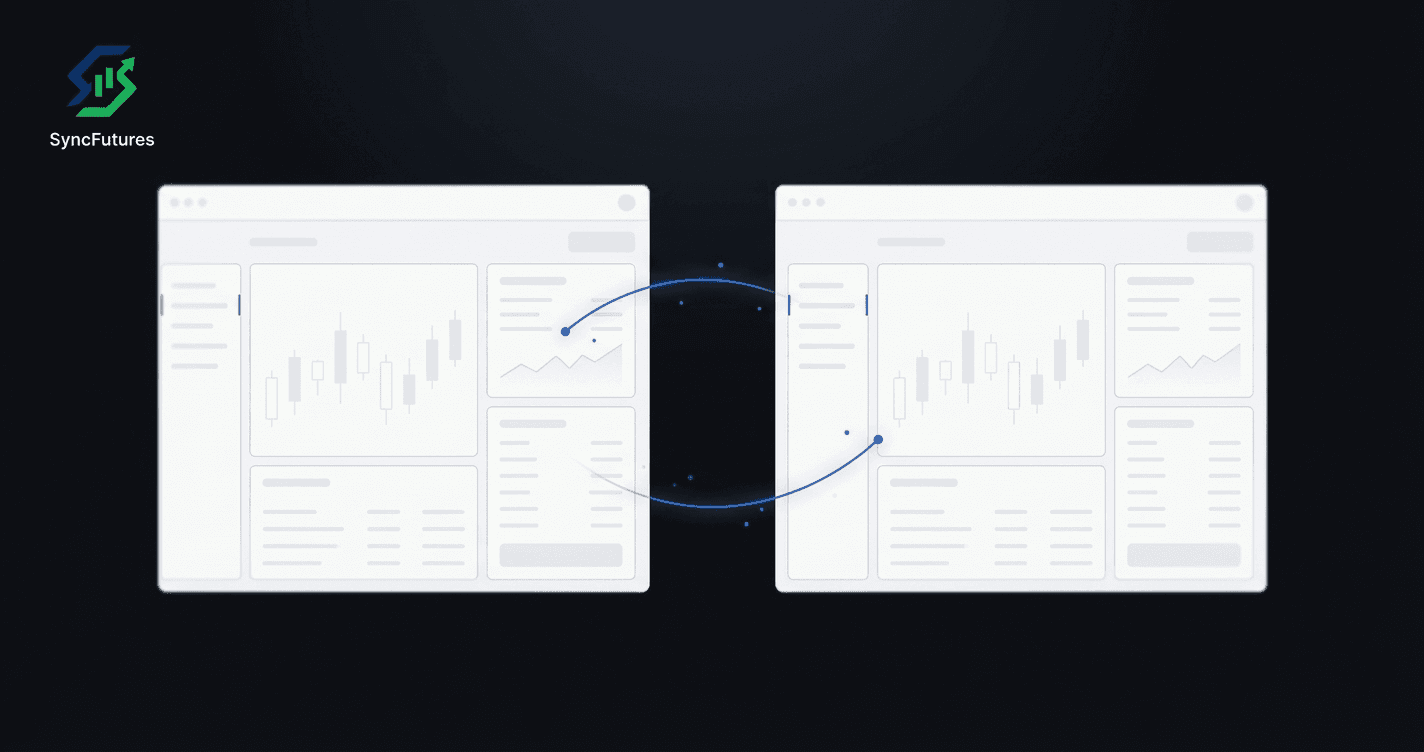
Running Apex Trader Funding and TopstepX accounts at the same time means managing two different broker platforms. Apex accounts run on Tradovate or Rithmic. TopstepX accounts run on ProjectX. They don't share an infrastructure, which means standard single-broker copiers won't cover both — you need a trade copier that supports cross-broker connections.
SyncFutures connects to all three broker platforms (Tradovate, Rithmic, and ProjectX) and can copy trades from one master account to slave accounts across any combination of them. This guide walks through how to set that up for Apex and TopstepX specifically.
What You're Actually Connecting
Before getting into setup steps, it's worth being clear about what each account connects through:
| Firm | Broker Platform | Connection Type in SyncFutures |
|---|---|---|
| Apex Trader Funding | Tradovate (most common) | Tradovate OAuth2 |
| Apex Trader Funding | Rithmic (alternative) | Rithmic credentials + system name |
| TopstepX | ProjectX only | ProjectX API key + TopstepX firm selection |
The broker you're on for Apex depends on what you selected when you purchased your account — Tradovate is the more common choice. Whichever you chose, SyncFutures has a direct connection type for it.
TopstepX is exclusively on ProjectX. There's no Tradovate or Rithmic option for TopstepX accounts; the connection always goes through the ProjectX API.
Account Environments: What "Demo" Means Here
Both firms primarily run on simulated environments, but it's worth understanding what that means in practice.
Apex: Standard evaluation accounts and Performance Accounts (funded) run on Tradovate or Rithmic in a Demo/simulated environment — fills happen on a simulated exchange, not real-capital. Apex launched an invite-only Live Funded Account (LFA) program around May 2026 for Performance Account traders with a strong payout history, but the overwhelming majority of Apex accounts at any given time are on Demo. If you're unsure which environment your account is on, check your Apex dashboard.
TopstepX: Express Funded Accounts (XFA) run in a simulated environment. TopstepX's Live Funded Account (where you're trading with Topstep's real capital) is only available via a call-up from the risk team — it's not something you apply for directly. For most traders, all TopstepX accounts are on Demo/simulated.
The practical effect on SyncFutures: when you connect your Apex account, you'll select Demo as the environment. When you connect TopstepX via ProjectX, the environment is determined by the account type (Express Funded = simulated).
Before You Start
Apex: Copy Trading Policy
Apex permits copy trading between accounts you own, with a cap of 20 accounts per trader (counted across your household and all platforms) and a same-direction requirement — every account must be on the same side at the same time, which a single-master copier does by design. Copying anyone else's trades is prohibited. Check Apex's current program rules directly, and note that SyncFutures does not enforce Apex drawdown rules; compliance is yours to manage.
TopstepX: Third-Party Copiers and the ProjectX API Subscription
TopstepX's built-in Lead/Follower feature allows copying between your own Express Funded accounts natively. For a third-party copier like SyncFutures, you connect via the ProjectX API instead.
The ProjectX API requires a separate ProjectX subscription on top of your TopstepX account — check current pricing on the ProjectX Dashboard. TopstepX traders have historically been offered a discount code for the ProjectX subscription; look in your TopstepX account or support resources for a current code before subscribing.
One setting to disable before running a third-party copier: in TopstepX, under Settings > Risk Settings, turn off Auto OCO Brackets and Auto Position Brackets if they're enabled. These auto-bracket settings create additional orders on every fill, which interfere with copy rule execution.
Topstep also places restrictions on some automated setups. Confirm with Topstep support that a third-party copier is acceptable for your account type before connecting one.
Step 1: Connect Your Apex Account
If Your Apex Account Is on Tradovate
- Open SyncFutures on web or the mobile app and go to Accounts
- Click Add Broker Connection (+ Add connection on mobile) and select Tradovate
- Choose Demo as the environment (Apex Performance Accounts and evals are on Demo)
- Authorize via the Tradovate OAuth2 window — no password entry into SyncFutures
- Your Apex accounts appear in the list after authorization
If Your Apex Account Is on Rithmic
- In Accounts Management, click Add Broker Connection (+ Add connection on mobile) and select Rithmic
- Enter your Rithmic username and password, then pick Apex from the System Name dropdown — SyncFutures loads the list of Rithmic systems live, so there's nothing to look up
- SyncFutures authenticates and loads your connected accounts
Both paths load the same account view in SyncFutures once connected — you pick a master or slave from the account list regardless of which broker path you used.
Step 2: Connect Your TopstepX Account
TopstepX connects via the ProjectX API:
- In your TopstepX or ProjectX Dashboard, go to Settings > API and generate an API key
- Back in SyncFutures, go to Accounts Management, click Add Broker Connection (+ Add connection on mobile), then select ProjectX
- Enter your username and the API key you just generated
- Select TopstepX as the prop firm from the firm list
- SyncFutures loads your TopstepX accounts
Your Apex accounts and TopstepX accounts are now both visible in SyncFutures under your connected accounts.
Step 3: Set Up the Copy Rule
With both connections live:
- Go to Copy Rules and click New Copier Rule
- Set the master account — typically your Apex account if it's your primary trading account, but this is your call
- Add your TopstepX account(s) as slave accounts — you can add multiple slaves in the same rule
- Select the contract symbol you're trading (e.g.,
ESZ6for December E-mini S&P 500,NQZ6for December Nasdaq). Copy rules in SyncFutures are pinned to a specific contract, not a generic instrument. - Set a quantity multiplier for each slave account if the sizes differ (see below)
- Save and activate the rule
The next fill on the master copies automatically to all connected slave accounts.
Sizing: When Your Accounts Aren't the Same Size
Apex and TopstepX accounts come in different sizes, and if you're running a larger Apex account with a smaller TopstepX account (or vice versa), copying at 1x would result in outsized positions on the smaller account.
SyncFutures lets you set a quantity multiplier per slave account, from 0.1x to 100x. For example:
- Apex $100K master trading 2 MNQ contracts
- TopstepX $50K slave: set multiplier to 0.5x to copy at 1 contract
Each slave account in a rule has its own multiplier, so if you're running accounts at different sizes you can size each one independently.
What SyncFutures Does and Doesn't Do
SyncFutures copies fills. It does not enforce Apex's or TopstepX's drawdown rules, auto-flatten at a loss threshold, or take any automated action related to prop firm compliance. The daily and weekly loss limits visible in the SyncFutures dashboard are informational journal goals — they display as reference points, but nothing triggers when you approach them.
Compliance with each firm's rules is your responsibility. This includes:
- Apex: daily loss limits, maximum drawdown, and any restrictions on trading strategies
- TopstepX: daily drawdown limits and any account-specific trading rules
Both firms' policies can change. Always check your current program documents directly.
Rollover: Update the Contract Symbol Each Quarter
Copy rules in SyncFutures are pinned to a specific contract symbol — not the underlying instrument in general. When futures roll to the next quarter (the current ES front month is ESZ6; the roll to ESH7 happens in mid-December 2026), rules still pointing at the old contract will go quiet: the master fills, but nothing copies to the slaves.
The fix is quick — update the symbol in your copy rule(s) before the roll date. One update covers all slave accounts on that rule simultaneously. See the quarterly rollover checklist for timing details.
FAQ
Can I use a TopstepX Express Funded account as the master and Apex as the slave?
Yes. Which account you designate as master is your choice. Many traders use their largest or most actively traded account as the master, but the copier doesn't impose a specific configuration. Just set the roles when creating the copy rule.
Can I run multiple TopstepX accounts as slaves?
Yes. You can add multiple slave accounts to a single copy rule, including multiple TopstepX accounts. Each gets its own quantity multiplier.
Does SyncFutures copy trades between Apex's Rithmic accounts and TopstepX's ProjectX accounts?
Yes — SyncFutures handles cross-broker copying between all supported broker platforms, including Rithmic and ProjectX.
Do I need separate copy rules for different contracts?
Yes. Each copy rule is pinned to one contract symbol. If you're trading ES and NQ on the same session, you'll need two rules: one for ESZ6 and one for NQZ6.
What happens at quarterly rollover?
Update the symbol in your copy rule to the new front-month contract before roll week. With the current cycle (December front month ESZ6, NQZ6), the next roll to March (ESH7, NQH7) happens in December 2026. Updating one rule covers all connected slave accounts at once.
For setup details specific to each firm individually, see the Apex Trader Funding trade copier guide and the TopstepX trade copier setup guide. SyncFutures plans count broker connections, not accounts: all of your Apex accounts share one connection and all of your TopstepX accounts share another, so this setup is typically two connections and fits the Starter plan. (If your Apex accounts span both Tradovate and Rithmic that's three connections — still Starter, but at its limit.) For pricing and to start your 7-day free trial, visit syncfutures.com/pricing.