

How to Copy Trades from Tradovate to Rithmic (Cross-Broker Setup Guide)
Learn how to set up cross-broker copy trading between Tradovate and Rithmic accounts in SyncFutures — covers OAuth2 and credential connections, copy rule setup, and what to expect when copying across brokers.
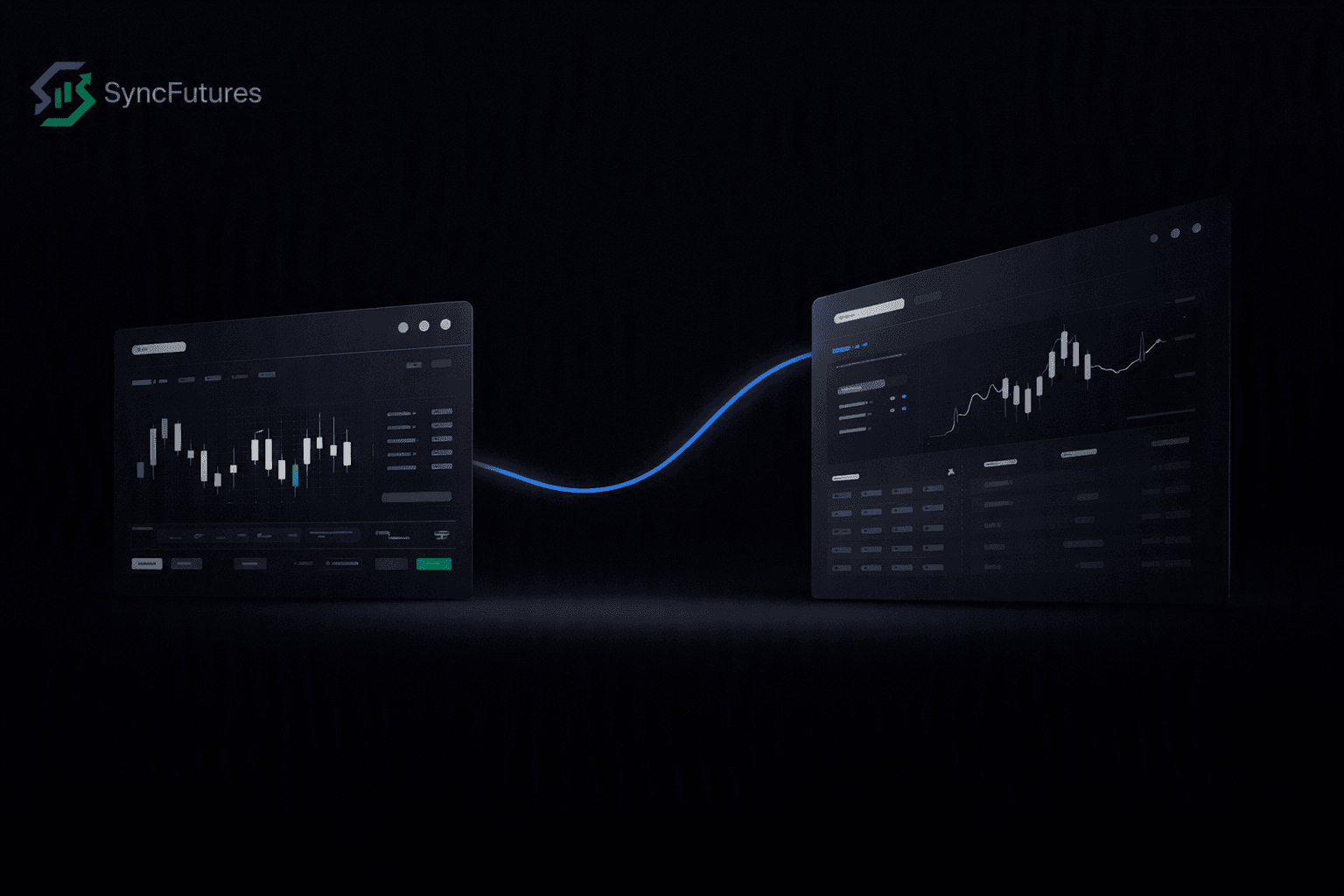
If you run funded accounts on both Tradovate and Rithmic — say, Tradeify accounts on Tradovate alongside Apex or Bulenox accounts on Rithmic — you're already juggling two separate broker platforms. A fill on one doesn't automatically reach the other.
SyncFutures copies trades across brokers, not just between accounts on the same broker. A fill on your Tradovate master copies to a Rithmic slave (or the other direction) the same way a same-broker copy works. This guide walks through the cross-broker setup.
When cross-broker copying matters
Prop firm traders often end up with accounts across different brokers. Apex Trader Funding, for example, offers both Tradovate and Rithmic as platform options — and some traders hold accounts on both. Tradeify accounts can run on either Tradovate or Rithmic, depending on which platform you were set up with. Bulenox and My Funded Futures run on Rithmic.
If your master account is on one broker and your slave accounts are on another, you need a copier that handles the translation — receiving a fill on Tradovate's API and sending the corresponding order to Rithmic's API, with the correct contract and quantity.
That cross-broker normalization is built into SyncFutures from the start. You don't configure anything special for it — adding a Tradovate connection and a Rithmic connection to the same account is all that's required.
What you'll need
Before starting, have the following ready:
For your Tradovate account:
- An active Tradovate account (live or demo)
- Access to Tradovate's login page — no credentials are entered directly in SyncFutures
For your Rithmic account:
- Your Rithmic username
- Your Rithmic password
- Your Rithmic system name — the identifier your prop firm provided (it's in your welcome email; common formats include "Rithmic Paper Trading" for sim accounts or a custom name for each prop firm)
A SyncFutures account: 7-day free trial. See pricing for plan details.
Step 1: Connect your Tradovate account
Tradovate uses OAuth2 — you authorize via Tradovate's own login rather than entering credentials in SyncFutures.
- Go to the Accounts section in SyncFutures (web or mobile).
- Click Add broker connection and select Tradovate.
- Select your environment: Live for a live brokerage account, Demo for simulated or evaluation accounts. This isn't strictly eval-vs-funded — some prop firms keep funded accounts on Demo permanently. Apex accounts (eval and funded alike) always run on Demo; Apex doesn't use a live Tradovate account at any stage. Tradeify's evaluation and initial funded accounts ("Sim Funded") also run on Demo. If you're on a different Tradeify tier, check your account documentation for which environment applies, since this can vary by tier. If you're unsure which environment your account uses, selecting the wrong one causes an immediate authentication error, so it's easy to catch and correct.
- You'll be redirected to Tradovate's login page. Authorize the connection.
- Your Tradovate accounts appear in a list — select the one you want to connect.
That's it for the Tradovate side. If you have multiple Tradovate accounts (e.g., multiple Apex eval accounts or multiple Tradeify accounts), repeat this process for each, selecting the relevant environment and account each time.
For a detailed walkthrough, see our Tradovate connection guide.
Step 2: Connect your Rithmic account
Rithmic uses credential-based authentication: your username, password, and the system name for your account.
-
In the Accounts section, click Add broker connection and select Rithmic.
-
Enter your Rithmic username and password.
-
Enter your system name. This is the identifier that tells Rithmic which environment your account is on. Common examples:
- "Rithmic Paper Trading" — for sim accounts
- A prop-firm-specific name (e.g., a custom name Bulenox or Apex provides in their welcome email)
- "Rithmic 01" — used by some retail brokers, but usually NOT for prop firm accounts
If you're not sure of your system name, check your prop firm's welcome email or member portal. Using the wrong system name is the most common reason Rithmic connections fail — the credentials can be correct but the system name mismatch prevents authentication.
-
After entering credentials, select the account you want to connect from the list that appears.
For more detail on system names and troubleshooting, see our Rithmic connection guide.
Step 3: Set up a cross-broker copy rule
With both connections active, you can create a copy rule between them.
- Go to Copy Rules in SyncFutures.
- Click New rule.
- Select your master account — the account where you take trades. This can be either your Tradovate or your Rithmic account.
- Select one or more slave accounts — the accounts that receive copied trades. These can be on a different broker than the master.
- Set the contract for the rule. Copy rules in SyncFutures are pinned to a specific contract symbol (e.g., MNQ September). Make sure the contract matches what you're actually trading on the master.
- Set a quantity multiplier if needed (0.1x to 100x). A 1x multiplier copies the exact position size from master to slave.
- Enable the rule.
Cross-broker and same-broker copy rules work identically from a setup standpoint. The broker difference is handled by SyncFutures internally.
A note on rollover
Copy rules are contract-specific, not instrument-general. If you set a rule to MNQ September and the quarterly rollover passes without updating it, the rule will go quiet — it's watching for fills on the old contract. Update the contract on the rule to the new front month before each quarterly roll.
What to expect after setup
Once the rule is active and both connections are live, fills on the master copy to the slave in real time. With cross-broker copying, you won't notice any difference in how it behaves compared to same-broker — the replication happens regardless of which broker each account is on.
A few things to know about what SyncFutures shows you with both brokers connected:
Realized P&L monitoring: SyncFutures shows real-time realized P&L across all connected accounts, including across brokers. You can see your Tradovate accounts and Rithmic accounts side by side in the same dashboard. Note that we show realized P&L only — open position P&L is not displayed (a technical limitation of the Tradovate API that would create parity issues across brokers).
Copy failure notifications: If a copy fails on a slave account — due to a connection issue, an order rejection, or another cause — SyncFutures sends a push notification on mobile and surfaces the failure in the dashboard. Successful copies are not push-notified.
One-click flatten: The flatten button closes all positions and cancels pending orders across all connected accounts simultaneously, regardless of broker. One tap on mobile or web.
Plans and connections
Each SyncFutures plan is priced by the number of broker connections, not by features:
| Plan | Connections | Price |
|---|---|---|
| Starter | 3 | $39/mo |
| Professional | 5 | $89/mo |
| Ultimate | Unlimited (up to 200 accounts) | $129/mo |
For a typical cross-broker setup with one Tradovate master, one Rithmic slave, and a few additional accounts, the Starter or Professional plan covers most traders. See pricing for details.
Common questions
Can a Rithmic account be the master and Tradovate be the slave? Yes. The master/slave direction is your choice — either broker can be either side of the copy rule. A Rithmic master copying to a Tradovate slave works the same as the reverse.
Can I copy across multiple brokers at once? Yes. You can have a Tradovate master copying to both Rithmic slaves and other Tradovate slaves in the same rule. Or separate rules for different account combinations.
Does cross-broker copying cost more? No. Cross-broker copying is included in every SyncFutures plan at no extra charge. The plan limits the number of connections, not the broker combinations.
What if I'm using NinjaTrader or ProjectX accounts alongside Tradovate and Rithmic? SyncFutures supports Tradovate, Rithmic, NinjaTrader, and ProjectX (TopstepX only, as of February 2026) connections in the same account. NinjaTrader connects through Tradovate's OAuth2 flow (it runs on Tradovate's infrastructure). ProjectX uses an API key connection. All four can be combined in copy rules.
What happens at quarterly rollover? Update your copy rules to the new front-month contract before the roll. The rule is pinned to the specific contract you set — it won't automatically follow you to the new month.
Get started
If you're ready to connect Tradovate and Rithmic accounts in the same setup:
- Start a 7-day free trial — full access from day one.
- Add your Tradovate connection (OAuth2) and Rithmic connection (credentials + system name) from the Accounts section.
- Create a cross-broker copy rule and test with a small position before scaling.
For broker-specific setup details, see: