

Running Apex Trader Funding and MyFundedFutures at the Same Time: Trade Copier Setup
How to connect both Apex Trader Funding and MyFundedFutures accounts to SyncFutures and copy trades across all of them simultaneously — covering connection paths, copy rule setup, and what to watch for.
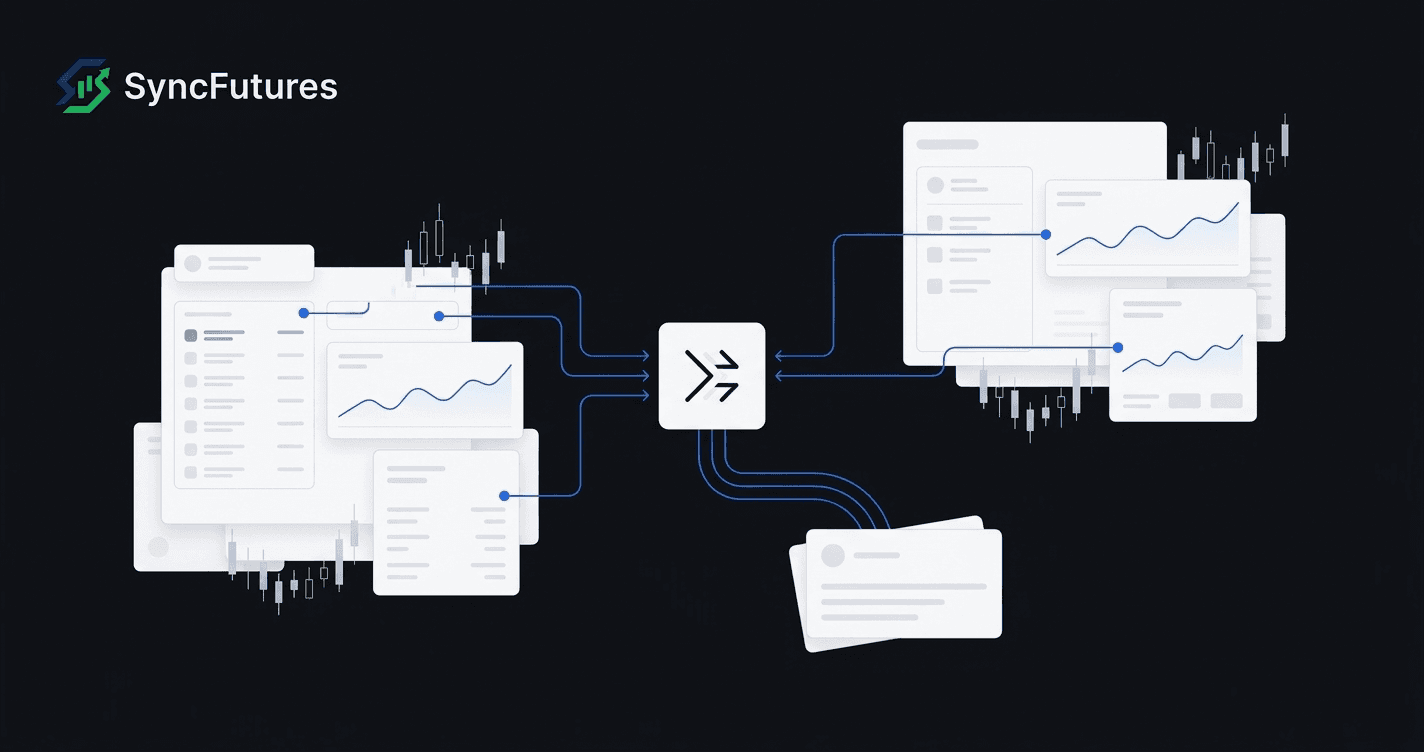
Running accounts at both Apex Trader Funding and MyFundedFutures is a common setup for prop traders who want exposure across multiple firms — more funded accounts, more opportunities to pass evaluations, more data on your own trading. The catch is that manually placing the same trade across four or five accounts at two different firms gets tedious fast.
SyncFutures handles the copying automatically: one fill on a master account replicates to all your slave accounts in real time, regardless of which prop firm or broker each account is on. This guide covers how to connect both Apex and MFFU accounts, set up copy rules for them, and know what to watch for in this specific multi-firm setup.
How Each Firm Connects
Apex Trader Funding
Apex lets you choose your execution platform at account purchase — either Tradovate or Rithmic. That selection is locked; you can't change it after buying the account.
- Tradovate accounts connect via OAuth2. You authorize through Tradovate's login page; no username or password is entered in SyncFutures. When connecting, you'll choose an environment (Live or Demo) — select Demo for Apex accounts. Apex evaluation and Performance Accounts (PA) both run on Tradovate's simulated environment, not a live brokerage account.
- Rithmic accounts connect with your Rithmic username, password, and system. Apex tells traders to select APEX as the system; your Rithmic username and password are in your Apex welcome email or on your Apex dashboard under the Rithmic setup section.
Both connection paths work in SyncFutures, and you can have some Apex accounts on Tradovate and others on Rithmic if your account history spans both. For step-by-step connection instructions, see our Apex Trader Funding trade copier guide.
MyFundedFutures
Most MFFU accounts connect through Tradovate OAuth2 — the same flow as Apex Tradovate accounts. SyncFutures also lists a NinjaTrader option for MFFU accounts; this uses the same Tradovate OAuth2 authorization behind the scenes, so the steps are identical. There's no separate NinjaTrader username or password to enter.
Check your MFFU dashboard for which platform your accounts are on, and check the environment (Live or Demo) when connecting. If you see "no accounts found," try the other environment. Our MyFundedFutures trade copier setup guide walks through the connection in detail.
MFFU permits copy trading across accounts you own, and prohibits copying between different traders or running a signal service. Their help center names TradeSyncer as their preferred integrated partner, and external copy trading tools also work. Two things to know: MFFU doesn't provide technical support — or account resets — for issues that stem from copy trading, so monitoring your copy activity is on you.
Setting Up the Copy Rules
Step 1: Connect all your accounts
From the Accounts page in SyncFutures (web or mobile), add each connection:
- Add your Apex accounts under the Tradovate or Rithmic connection type, depending on which platform each account uses.
- Add your MFFU accounts under Tradovate (or NinjaTrader, which uses the same flow).
All the accounts under one login arrive together on a single connection — you don't add them one at a time. You can connect multiple brokers in the same SyncFutures account, and that's what enables cross-broker copying.
Step 2: Decide on your master
The master is the account whose fills get copied to the slaves. If you're trading from a personal live account at a retail broker (such as a live Tradovate account), that makes a natural master. If you're copying between funded accounts only, pick the account you place your primary entries on.
A few things that matter when picking the master:
- Account size and sizing. Each slave account in a copy rule has its own quantity multiplier (0.1x–100x). If your master trades 5 contracts and a slave account is smaller, you'd set a multiplier like 0.3x or 0.5x to size that account down.
- Environment. You can copy between Live and Demo environments. Copying from a Live master into Demo slave accounts (typical for Apex and MFFU evaluation accounts) works fine — the Demo fills are simulated regardless of where the signal comes from.
Step 3: Create a copy rule
In SyncFutures, create a copy rule and assign:
- The master account
- Each slave account (Apex and MFFU accounts alike) with its own multiplier
- The contract to copy — e.g.,
ESZ6for the December ES contract
Note on the symbol format: contracts use a single-digit year — the correct notation is ESZ6, NQZ6, MESZ6, not ESZ26 or NQZ26. If you pick the wrong contract month, the rule won't match your fills.
Once the rule is active, fills on the master copy to all assigned slave accounts automatically — Apex and MFFU accounts side by side.
Handling a Mixed Tradovate + Rithmic Setup
If your Apex accounts are on Rithmic and your MFFU accounts are on Tradovate (or vice versa), the setup is the same — SyncFutures handles cross-broker copying natively, and the copy rule doesn't care which broker each side is on. SyncFutures uses the same contract symbols for every account, whichever broker each one sits on, so a single rule covers them all. Your trading platform may display the contract differently — NinjaTrader's desktop app shows the December 2026 E-mini as ES 12-26 — but pick the contract by its SyncFutures name and the rule will match your fills.
Contract Rollover
Copy rules in SyncFutures are tied to a specific contract, not to a general instrument. When the front month rolls — as ES and NQ just did, from September to December — any rule still pinned to the old contract goes quiet. The master fills, and nothing copies to the slaves.
The fix takes under a minute: update the rule's contract to the new front month. Since one rule feeds all of its slave accounts, you update it once and every account picks up the change. Roll timing varies between firms and brokers, so confirm the current contract with your prop firm before you trade it. Our rollover checklist covers the whole routine.
What SyncFutures Doesn't Do
It's worth being clear about what the copier handles versus what stays your responsibility:
- It does not enforce prop-firm rules. The daily and weekly loss-limit goals you can set are informational journal goals, not automated enforcement. SyncFutures won't suspend copying or flatten your positions if you approach a drawdown threshold.
- It does not manage funded-account compliance for you. Both Apex and MFFU hold you responsible for trading within their rules regardless of how you execute.
- Notifications cover problems, not successful fills. If a copy goes through cleanly, nothing fires. You're notified when a copy fails (for example, an order rejected on a slave account) and when a follower account is skipped because its connection is down — that account is then out of sync with the master until you reconcile it.
Plan Sizing for Apex + MFFU
Plans count broker connections, not accounts. All your Apex accounts under one login share a single connection, and the same goes for your MFFU accounts — so a typical Apex + MFFU setup is two connections, however many accounts sit inside them.
- Starter (3 connections, $39/mo) — covers most Apex + MFFU setups.
- Professional (5 connections, $89/mo) — room for more firms, a personal brokerage account, or Apex accounts split across both Tradovate and Rithmic.
- Ultimate (unlimited connections, up to 200 accounts, $129/mo) — for traders running many accounts across several firms.
All plans share the same features — cross-broker copying, multipliers, flatten, realized P&L monitoring, journal. Only the connection count differs.
Getting Started
SyncFutures offers a 7-day free trial. You can connect your actual Apex and MFFU accounts during the trial and run live copy sessions to confirm everything lands the way you'd expect.
Start at syncfutures.com/pricing. If you run into anything during setup — wrong environment, accounts not appearing, copy rule not firing — reach out via in-product support from the dashboard.