

MyFundedFutures Trade Copier Setup Guide (2026)
How to connect your MyFundedFutures accounts to SyncFutures and copy trades automatically — covering the Tradovate connection flow, copy rule setup, and what the copier does and doesn't handle.
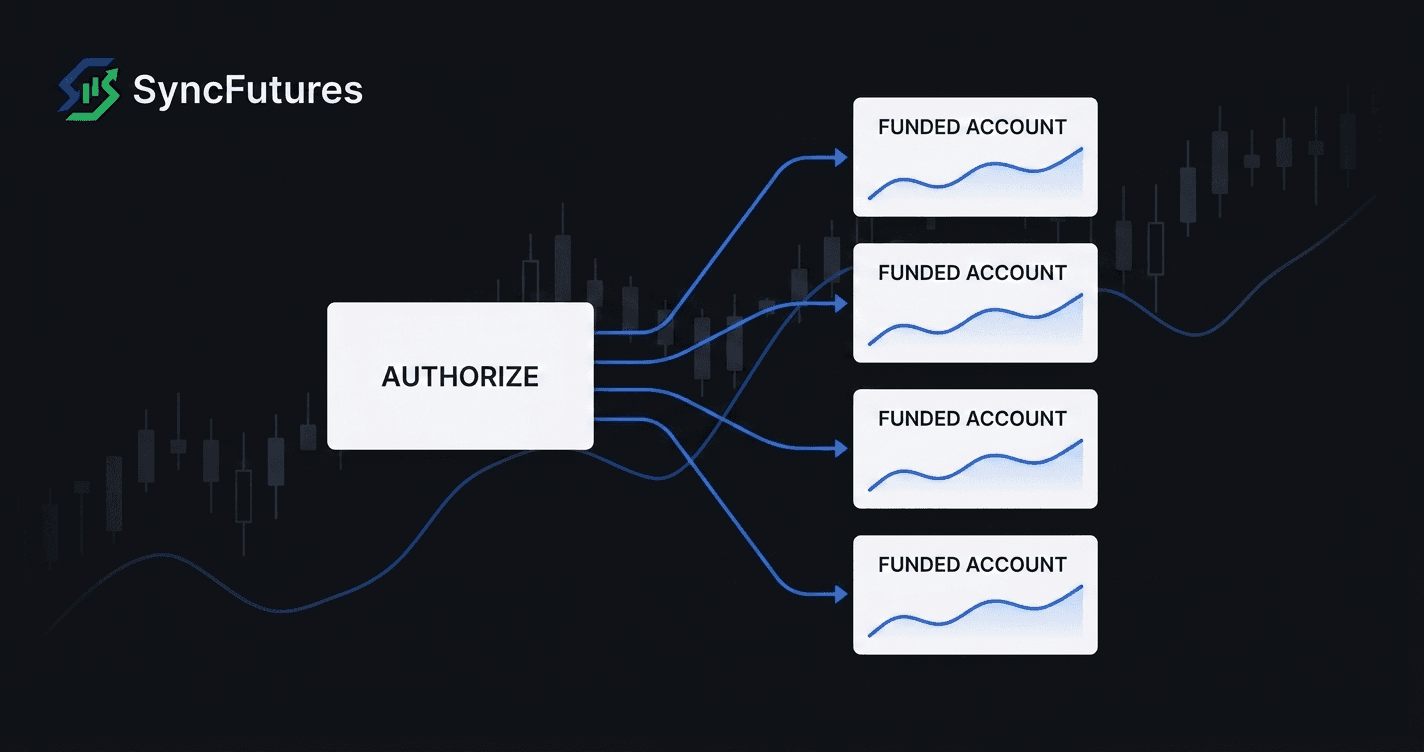
MyFundedFutures allows copy trading with external tools. If you're running multiple MFFU accounts — or copying between an MFFU account and accounts at other brokers — SyncFutures can automate the fill replication across all of them.
This guide covers how to connect your MFFU accounts to SyncFutures, set up copy rules, and understand what the copier handles versus what stays your responsibility.
What You Need Before Starting
Confirm Your Account's Trading Platform
Most MyFundedFutures accounts run on Tradovate. SyncFutures connects to Tradovate via OAuth2 — no username or password entry; you authorize through Tradovate's login page and select the environment (Live or Demo).
Some MFFU accounts run on NinjaTrader instead. In SyncFutures, the NinjaTrader connection option uses the same Tradovate OAuth2 authorization behind the scenes — you'll still sign in through Tradovate's login page, just under the NinjaTrader label. There's no separate NinjaTrader username/password to enter.
Check your MFFU dashboard or account documentation to confirm which platform your accounts are on before proceeding.
Check MFFU's Copy Trading Policy
MyFundedFutures permits copy trading across your own accounts. Their help center notes that TradeSyncer is their preferred integrated copier, and that external copy trading solutions can also be used.
Two rules to know before connecting:
- Own accounts only. MFFU prohibits copy trading between different traders' accounts — a copy rule should only ever link accounts you personally own and trade.
- No support for copy-trading-related issues. MFFU is not obligated to provide technical support, troubleshooting, or account resets for anything stemming from copy trading activity. If a copied fill causes a rule violation, that's on you to resolve — MFFU won't unwind it.
Review MFFU's current terms for any additional restrictions specific to your account type or plan. MFFU places full compliance responsibility on the trader: "users remain solely responsible for ensuring their copy trading activities comply with all applicable terms of service."
How to Connect MyFundedFutures to SyncFutures
MFFU accounts on Tradovate connect through Tradovate's OAuth2 authorization flow — the same flow as any Tradovate-connected prop firm. If your MFFU account is on NinjaTrader instead, select NinjaTrader in step 1 below — it runs through the same Tradovate OAuth authorization, just labeled for NinjaTrader.
Step 1: Open the Accounts Page in SyncFutures
- Go to syncfutures.com and log in, or open the mobile app
- Navigate to the Accounts page
- Click or tap Add connection and select Tradovate (or NinjaTrader, if that's your MFFU platform)
Step 2: Authorize via Tradovate
SyncFutures redirects you to Tradovate's login page. Sign in with your Tradovate credentials. You'll then be returned to SyncFutures with your accounts loaded.
Choose the right environment. Tradovate accounts exist in either Live or Demo environment, and you select which one during the connection. Which environment your MFFU accounts use depends on your account stage — check your MFFU account documentation for this. If SyncFutures shows no accounts after connecting, try switching the environment selector (Live ↔ Demo) — this resolves most "no accounts found" cases.
Step 3: One Connection Covers All Your Accounts
A single OAuth authorization pulls in every account under that login — you don't need to reconnect for each MFFU account. Once they all appear, you select individual accounts as master/slave when configuring copy rules below.
Setting Up a Copy Rule
Once your accounts appear in SyncFutures:
- Go to Copier Rules and click Create New Copier Rule
- Select the master account — the account you're actively trading
- Select one or more slave accounts — the accounts that receive copied fills
- Choose the contract: ES, NQ, MNQ, MES, CL, or whichever instrument you're trading. Copy rules in SyncFutures are pinned to a specific contract symbol. If you trade multiple contracts, set up a separate rule for each — note your plan has a maximum number of copy rules, so factor that in if you're trading several contracts across several accounts.
- Set a quantity multiplier if needed (0.1x to 100x per slave) to scale position sizes between accounts of different sizes
- Save and activate the rule
The next fill on the master account will copy automatically to every connected slave account.
What SyncFutures Does and Doesn't Do
SyncFutures copies fills. It does not enforce MyFundedFutures drawdown rules, auto-flatten when you approach a daily loss limit, or take any automated action based on MFFU's account rules. The daily and weekly loss limits in SyncFutures are informational journal goals — they appear in your dashboard as a reference, but no automated action triggers when you reach them.
Compliance with MFFU's trading rules — maximum contracts, drawdown limits, daily loss limits, session close requirements — is your responsibility. SyncFutures gives you one place to execute across multiple accounts simultaneously; the trading decisions and rule adherence remain yours.
One-click flatten is available from both the web dashboard and the mobile app. It closes all positions across your connected accounts and cancels any resting orders. It's a manual action, not an automated trigger.
Can I Copy Between MFFU and Other Brokers?
Yes. SyncFutures supports cross-broker copying, so your master and slave accounts don't need to be on the same broker. If you're running an MFFU (Tradovate) account alongside a Bulenox (Rithmic) or TopstepX (ProjectX) account, you can copy fills across them in either direction.
See the cross-broker copy trading guide for how the master/slave setup works across different brokers.
Frequently Asked Questions
Does SyncFutures work with all MyFundedFutures account types?
SyncFutures can connect to any MFFU account running on Tradovate or NinjaTrader (NinjaTrader connects via the same Tradovate OAuth2 flow, just under a different label). MFFU allows copy trading across your own account types.
Will a copy rule affect my MFFU rule compliance?
The copier replicates your fills. Your MFFU account rules (position limits, daily loss cap, session close requirements) remain your responsibility — SyncFutures doesn't monitor or enforce them. If a copied fill would put a slave account in violation of its firm's rules, that's your trading decision to manage before placing the master trade.
Does SyncFutures push notifications when a copy fails?
Yes. SyncFutures sends push notifications for copy failures — if a fill on the master doesn't copy to a slave, you'll get a push alert on mobile (if you have the app installed). You won't receive a notification for every successful copy — only failures.
What happens at quarterly contract rollover?
Copy rules are pinned to a specific contract symbol. When ES, NQ, CL, or other front-month contracts roll, a rule pointed at the expiring contract goes quiet — master fills, nothing copies to slaves. Update the contract symbol on each copy rule before or just after the quarterly roll. See the quarterly rollover checklist for details.
How many MFFU accounts can I connect?
As many as your SyncFutures plan allows. The Starter plan supports 3 broker connections, Professional supports 5, and Ultimate supports unlimited connections (up to 200 accounts). See pricing.
Is there a mobile app?
Yes. SyncFutures is available on iOS and Android. You can monitor accounts, review the journal, one-tap flatten, and manage connections from your phone.
Getting Started
SyncFutures offers a 7-day free trial. The Starter plan at $39/mo covers 3 broker connections — since all your MFFU accounts under one login share a single connection, that's usually enough room for MFFU accounts plus a couple of other brokers, not a per-account limit.
If you're connecting MFFU accounts alongside accounts at other brokers, the Tradovate connection guide has additional detail on the Tradovate OAuth2 flow.