

How to Copy Trades from a Live Tradovate Account to a Prop Firm Evaluation
Step-by-step guide to copy trades from a live Tradovate account to prop firm evaluation accounts — including how to configure Live vs Demo environments in SyncFutures and which firms use which.
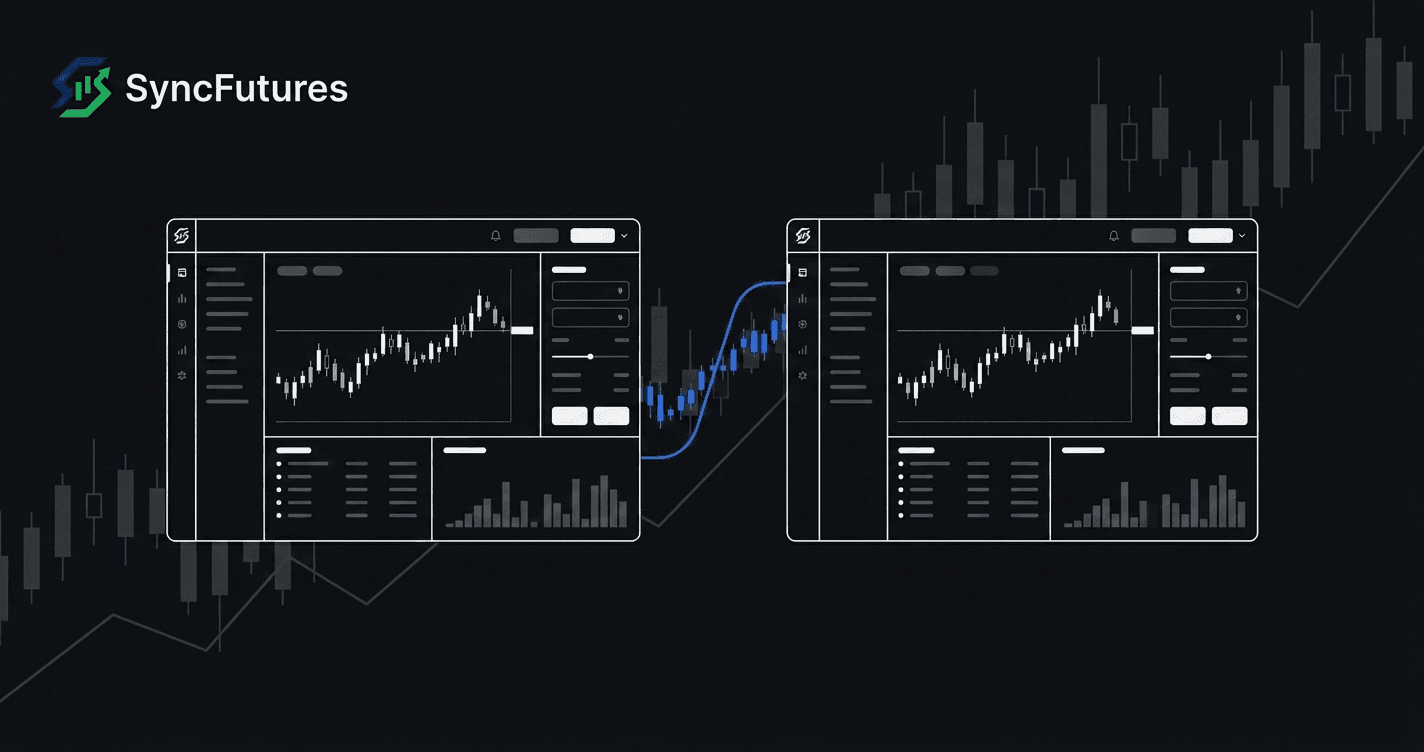
Many futures traders run a combination of accounts at the same time: an active live or funded account alongside one or more prop firm evaluations they're trying to pass. The goal is to copy fills from the live master to the evaluations automatically — trade once, have the same fills land everywhere.
The setup works well in SyncFutures, but Tradovate's Live and Demo environments are separate endpoints, and connecting to the wrong one leaves you with an empty account list and no obvious error. This guide walks through the environment distinction, the connection setup, and the prop-firm-specific details you need to get it right.
Setting up copy trades between a live Tradovate account and a prop firm evaluation
How Tradovate environments work in SyncFutures
Tradovate connections in SyncFutures use OAuth2 — no username or password entry. When you authorize a connection, you also pick the environment: Live or Demo.
These are separate connections. If your master is on Live and your evaluation is on Demo, you need two distinct connections in SyncFutures, each authorized with the correct environment selected.
The most common reason an account doesn't appear after connecting: the environment is set to Live but the account is on Demo, or vice versa. If you see a successful connection but an empty account list, switching the environment selector and reconnecting almost always fixes it.
Step 1 — Add your live Tradovate connection
Open the Accounts section in SyncFutures (web or mobile). Add a new Tradovate connection and select Live as the environment. Authorize via Tradovate's OAuth flow. Your live brokerage or funded account will appear in the account list.
Step 2 — Add your evaluation account connection
Add a second Tradovate connection. This time select Demo as the environment. Authorize via OAuth. Your prop firm evaluation account will appear.
If the account doesn't show after authorizing, confirm you selected the right environment for that account. Most evaluation accounts are on Demo — the firm-by-firm breakdown is below.
Step 3 — Create a copy rule
In SyncFutures, set your live account as the master and your evaluation account as the slave. The copier mirrors fills from the live master to the evaluation in real time.
If you want to copy to more than one evaluation on the same contract, add each as an additional slave on the same copy rule — SyncFutures blocks a second rule for the same master account and contract, so separate rules only work if you're copying different contracts.
Step 4 — Size down if your accounts are different sizes
If your live account is larger than the evaluation, use the quantity multiplier — set per slave, not per rule — to scale that slave's copied size down. The range is 0.1x to 100x. Watch the math on small fills: if the master's fill size times the multiplier works out to less than 1 contract, SyncFutures cancels that slave's copy rather than rounding up, so a multiplier that's too aggressive for a 1-contract master fill means nothing copies to that evaluation.
Which prop firms use Demo evaluation accounts on Tradovate
| Firm | Evaluation environment | Funded environment |
|---|---|---|
| Apex Trader Funding | Demo (Tradovate) | Demo — always (Tradovate) |
| Tradeify | Demo | Demo for initial funded tier; check your dashboard for later stages |
| MyFundedFutures | Check your MFFU dashboard | Check your MFFU dashboard |
Apex Trader Funding: Apex lets traders choose Tradovate or Rithmic at account purchase, and that choice is locked afterward. If you're on Tradovate, your accounts are always on Demo — at every stage, evaluation and funded. When adding an Apex connection in SyncFutures on Tradovate, always select Demo. If you're on Rithmic instead, the Live/Demo distinction in this guide doesn't apply — see our Rithmic connection guide.
Tradeify: Tradeify runs on both Tradovate and Rithmic — evaluation and initial funded ("Sim Funded") accounts on either platform use Demo. Tradeify has a further live-capital tier for qualified funded traders — check your Tradeify account dashboard to confirm which environment your specific funded account is on before setting up the connection.
MyFundedFutures: MFFU accounts can be on Live or Demo depending on your account stage. Don't guess — check your MFFU dashboard or account documentation to confirm the environment before adding the connection.
NinjaTrader accounts at Tradovate-based prop firms
If your evaluation shows as a NinjaTrader account rather than Tradovate, add a NinjaTrader connection in SyncFutures instead of a Tradovate one. At most prop firms, NinjaTrader accounts run on Tradovate's infrastructure and connect through the same OAuth2 flow — same screens, same Live/Demo selector. There's no separate credential entry.
The Live/Demo environment quirk applies here too: if your NinjaTrader evaluation account is on Demo and you connected using Live, the account list will be empty. Switch the environment and reconnect.
Cross-broker copying: when your master isn't on Tradovate
If your active trading account is on Rithmic — for example, a Tradeify Rithmic account or a Bulenox account — and your evaluation is on Tradovate, SyncFutures copies between them. Cross-broker copying is a core feature, not an add-on. See How to Copy Trades Between Tradovate and Rithmic for a full setup guide.
What to watch for after setup
Rollover. Copy rules in SyncFutures are tied to a specific contract symbol. When the front-month rolls (ES, NQ, CL, and others), update the rule to the new contract before rollover — otherwise the master fills and nothing copies to the evaluation. The quarterly rollover checklist covers this in detail.
Copy failures. If a copy attempt fails at the broker — for example, a size rejection — SyncFutures sends a push notification on iOS and Android so you know immediately. Successful copies don't push an alert; only broker-side failures do. A few other cases (a stale order skipped after a connection interruption, a slave order auto-cancelled because the multiplier rounded it below 1 contract, a connection drop after a short grace period) show up as in-app notifications without a push, so it's worth checking the notifications panel occasionally, not just watching for a push alert. A disconnected evaluation account specifically is skipped before a copy is even attempted, so there's no notification for that moment at all — check your Accounts page to confirm every account shows as connected before you rely on the copier.
SyncFutures doesn't enforce prop firm rules. Position limits, drawdown thresholds, and consistency requirements are your responsibility and your firm's. SyncFutures displays daily and weekly P&L as informational journal goals — nothing is auto-enforced. See Trade Copier and Prop Firm Rules for how this works in practice.
FAQ
Can I copy from one evaluation account to another? Yes, provided your prop firm allows it. Most major Tradovate-based prop firms permit copying between your own accounts. Check your firm's terms before setting it up.
What if I connected to the right environment but the account still doesn't appear? Make sure the Tradovate account you're looking for is actually under the login you authorized. Some traders have multiple Tradovate logins across firms — if the account is under a different login, you need to authorize a separate connection using that login.
Does SyncFutures support multiple evaluation slaves? Yes, and plans are capped by broker connections, not by account count. A connection is per broker login — one Tradovate connection surfaces every account under that login, so a master plus several evaluations at the same firm can run on a single connection. The Starter plan covers 3 connections, Professional covers 5, and Ultimate covers unlimited connections up to 200 accounts. See pricing for details.
Can I copy trades to evaluation accounts at multiple prop firms at once? Yes — as long as each firm's accounts are on a supported broker (Tradovate, Rithmic, NinjaTrader, or ProjectX — TopstepX only as of February 2026) and that firm permits copying your own accounts. See How to Trade Multiple Prop Firm Evaluations Simultaneously for the multi-firm setup.
Does copying to an evaluation improve my chances of passing? Only if your master account is trading profitably and within the evaluation's rules. Copying removes the manual step of placing the same trade in multiple places — the edge still comes from you.
SyncFutures includes a 7-day free trial on all plans. Add your accounts, create a copy rule, and your fills start copying in real time. Start at syncfutures.com/pricing.